


In my previous post, I introduced the concept of sets. Dynamic grouping of data. Imagine starting with a bar chart showing Sales by Category from the Superstore dataset.
At first glance we'll see the big picture our categories:
Technology
Furniture
Office Supplies

But what if you want to dig deeper into just one category, without cluttering the view with every sub-category at once? This is a place where set actions come to help us.

Let's start by building simple bar chart Sales by Category:
- Place "Category" on Rows and Sales onto Columns

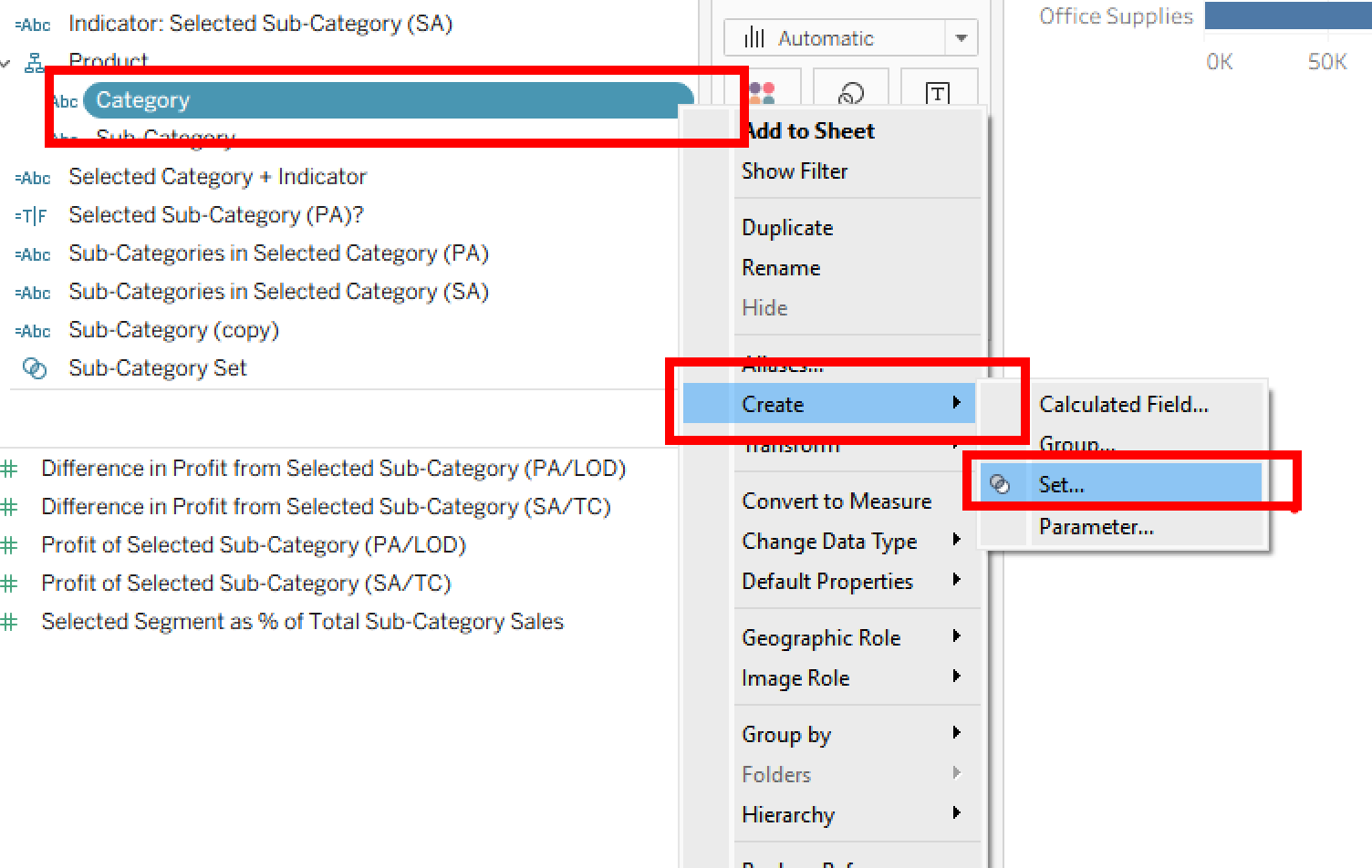
- Let's create Category Set. In the data pane find "Category" -> right click Select Create -> Set
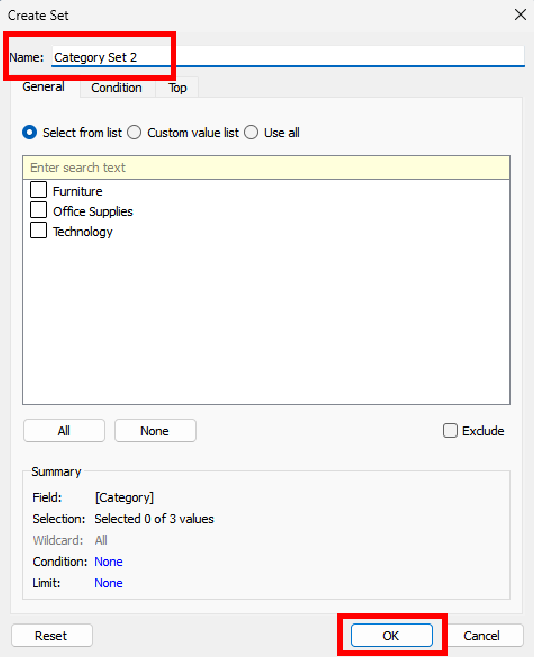
Name it "Category Set" and press OK.
- Next we are going to create a calculated field that will tell our "Categories" when to expand and show its "Sub-Categories"
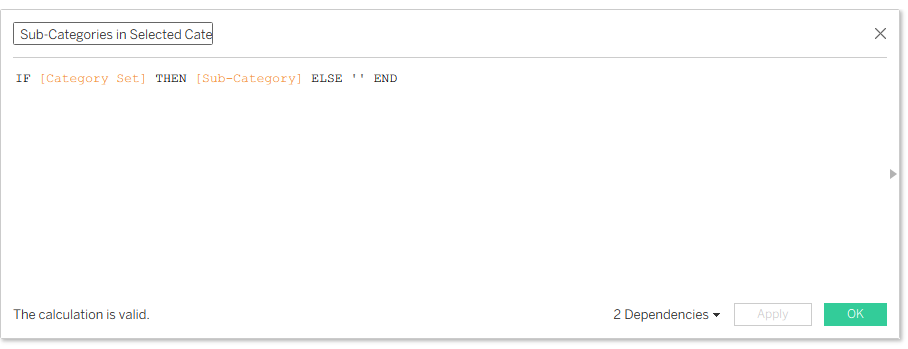
- Let's rename our worksheet to keep everything organized and tidy. And now we have all the components ready for the drilldown part to start working. For that we need to set our Set Actions this can be done in the Worksheet -> Actions or Ctrl+Shift+A
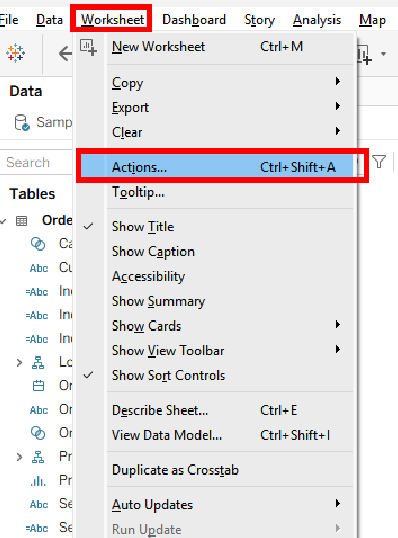
The following settings window will open up:
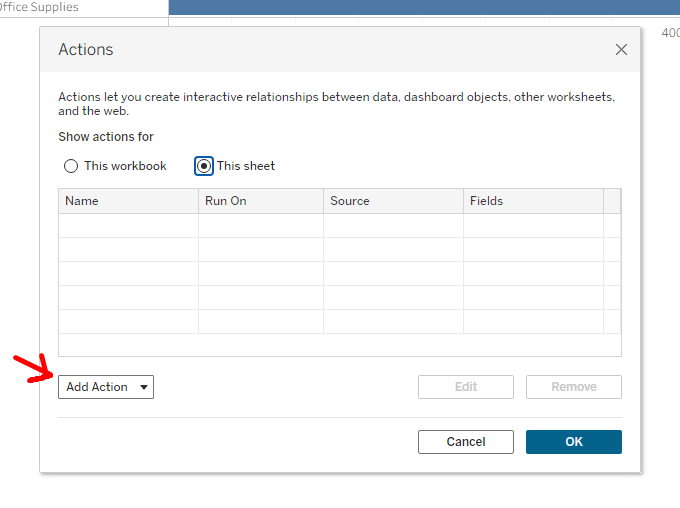
on my screen I switched to This Sheet option just to keep it less crowded. If you don't have any other actions in your workbook it will be empty
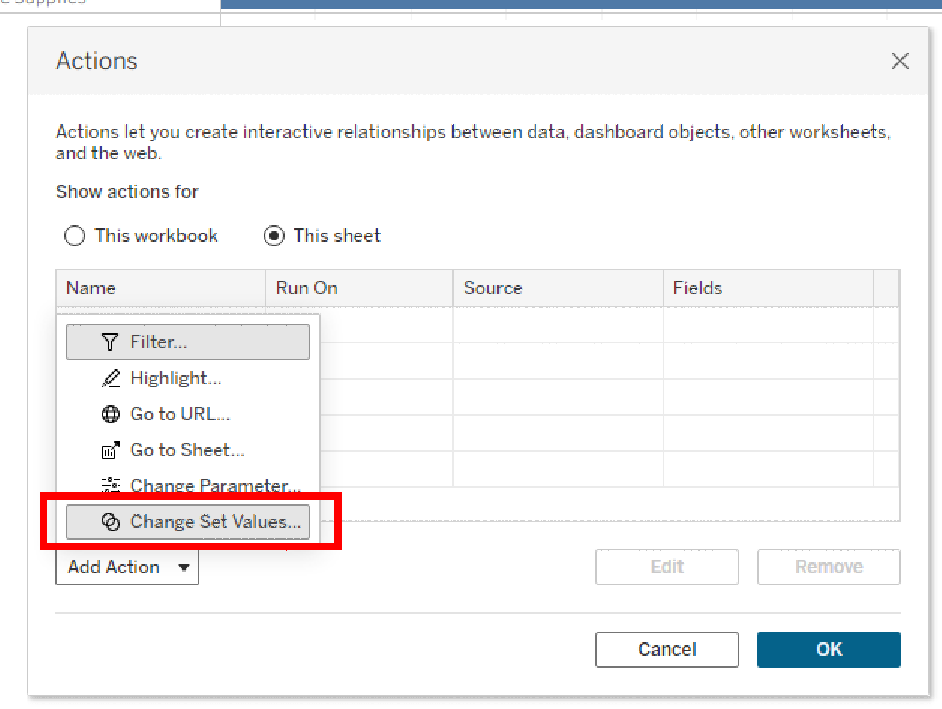
Add Action -> Change Set Values -> OK
Next we see Configuration window for Set Action:
Change Name -> Source Sheet would be the sheet that we are applying set actions to -> Run action on Select
Target Set is Category Set -> Running the action Assign values to set -> Clearing the selection will Remove all values from set.
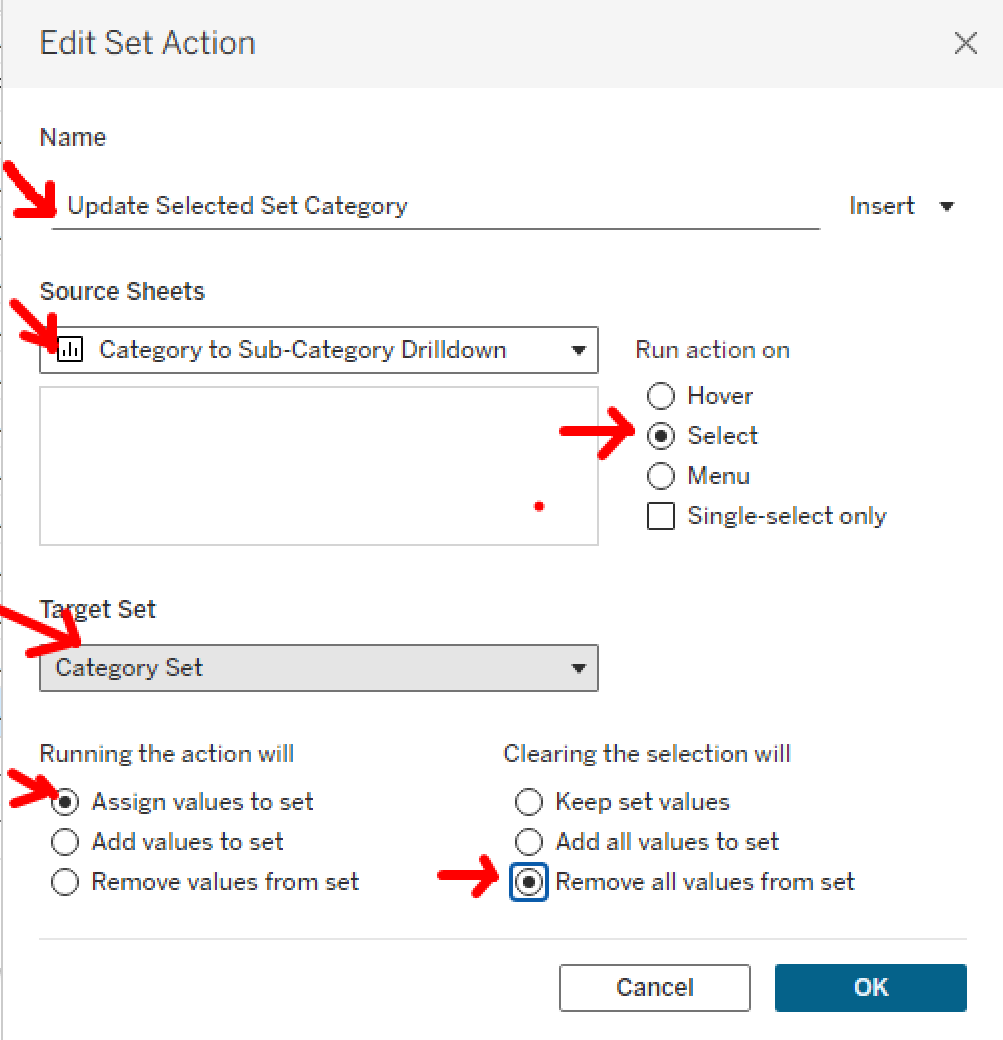
After that click OK and our drilldown from "Category" to "Sub-Category" should be working.