


Dates are everywhere in data – in orders, events, transactions, timelines, and more.
I recently built a dashboard to make date functions more approachable:
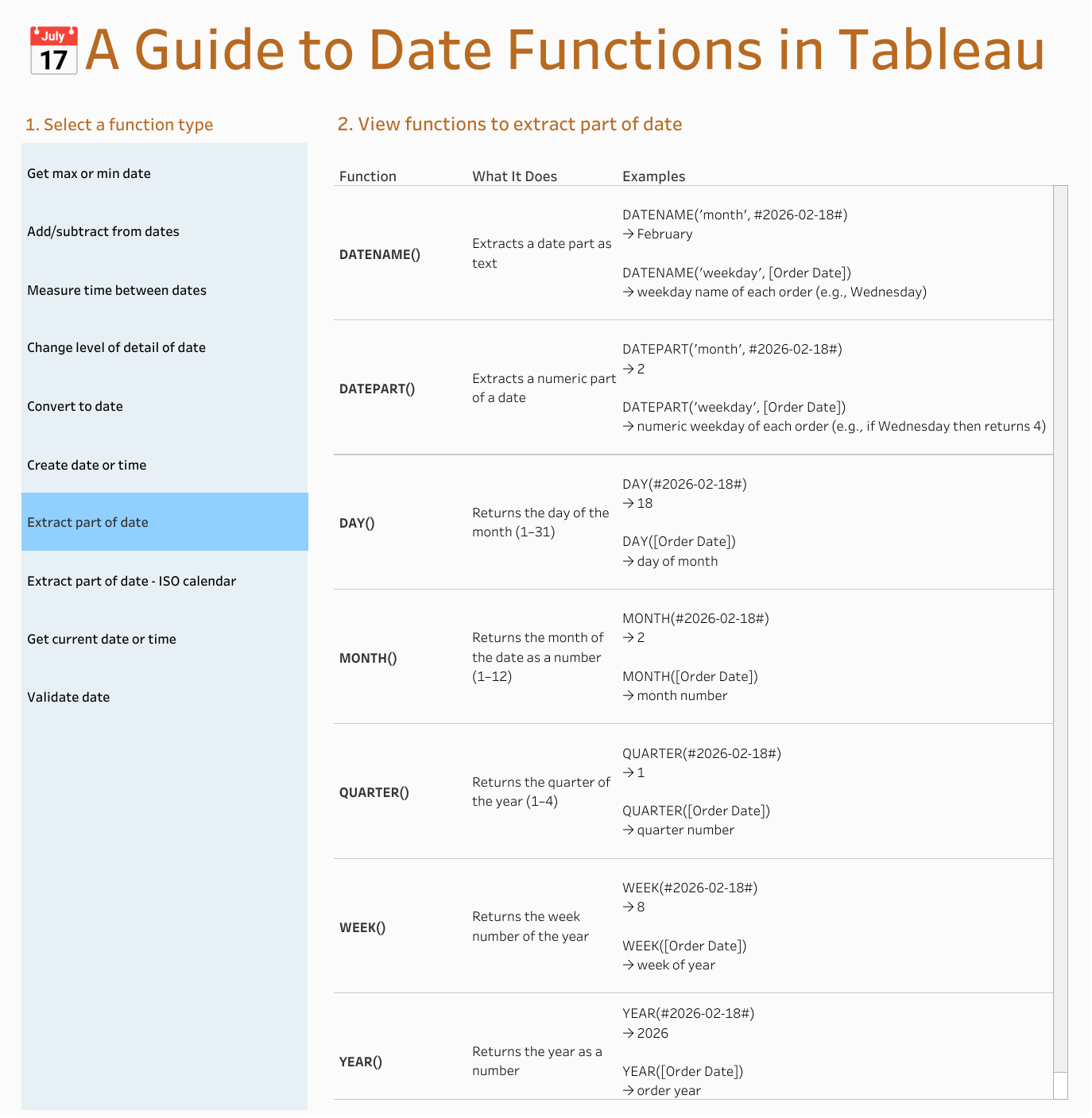
While doing so, I realized most functions fall into a handful of categories:
- Finding the max or min date
- Adding or subtracting from dates
- Measuring time between dates
- Changing level of detail of dates
- Converting and creating dates
- Extracting parts of dates
- Getting current date or time
- Validating that values are dates
You can view the dashboard with all the calculations here. Below, I will also walk through some examples of each function.
1. Finding the MAX or MIN Date
Sometimes you want to know the maximum or minimum date in a particular view. This is exactly what MAX() and MIN() are built for:
- MAX([Order Date]) → latest order date
- MIN([Order Date]) → earliest order date
- MAX(#2024-01-01#, #2026-01-01#) → 2026-01-01
- MIN(#2024-01-01#, #2026-01-01#) → 2024-01-01
Note that functions like MAX([Order Date]) are context dependent, meaning they calculate the maximum date within whatever level of detail is in your view.
If you wrap MAX([Order Date]) in a FIXED LOD that is fixed on nothing, e.g., { FIXED : MAX([Order Date])}, then Tableau will ignore any groupings or dimensions in your view. This means the result will be the same for every row, showing the absolute maximum date across your dataset.
2. Adding or Subtracting Time
To shift dates forward or backward, you can use DATEADD().
- DATEADD('day', 7, #2026-02-18#) → 2026-02-25
- DATEADD('month', -1, [Order Date]) → subtracts one month from each order, e.g., from 10/19/22 to 9/19/2022
This can be helpful for creating rolling windows, like “last 7 days” or “last 30 days.”
3. Measuring Time Between Dates
If you want to calculate durations, like how long it takes to ship an order or how long a customer stays active, you can use DATEDIFF().
- DATEDIFF('day', #2026-02-01#, #2026-02-18#) → 17
- DATEDIFF('day', [Order Date], [Ship Date]) → number of days between order date and ship date
4. Changing the Level of Detail of Dates
DATETRUNC() will reset your date to a specific level:
- DATETRUNC('month', #2026-02-18#) → 2026-02-01
- DATETRUNC('year', [Order Date]) → Jan 1 of of year for each order
DATETRUNC() is helpful when you're trying to aggregate to quarters, months, or years. You can use it for cohort analysis, like grouping customers by the month they first purchased.
5. Converting and Creating Dates
Dates may come as strings or separate fields that you will want to convert to dates:
- DATE(#2026-02-18 14:30:00#) → 2026-02-18
- DATE([Order Date String]) → converts order string to date
- DATEPARSE('yyyy-MM-dd', "2026-02-18") → 2026-02-18
- DATEPARSE('MM/dd/yyyy', [Date String]) → Date value parsed from Date String
You can also create/assemble dates from parts:
- MAKEDATE(2026, 2, 18) → 2026-02-18MAKEDATE([Year], [Month], 1) → first day of each monthMAKEDATETIME(#2026-02-17#, #08:30:00#) → 2026-02-17 08:30:00
- MAKEDATETIME([Date], [Time]) → combines date & time
This lets you combine separate fields into a single date, so you can turn year + month + day columns into a real date.
6. Extracting Parts of a Date
Sometimes you don’t need the full date, you just need a part of it.
Numeric extraction:
- DATEPART('weekday', [Order Date]) → numeric weekday of each order (e.g., if Wednesday then returns 4)
- DAY([Order Date]) → day of month, e.g. 18
- MONTH([Order Date]) → month number, e.g., 2
- YEAR([Order Date]) → order year, e.g. 2026
- QUARTER([Order Date]) → quarter number, e.g. 1
- WEEK([Order Date]) → week of year, e.g. 8
Text extraction:
- DATENAME('month', [Order Date]) → month of date, e.g. "February"DATENAME('weekday', [Order Date]) → weekday of date, e.g. "Wednesday"
ISO calendar functions:
- ISOYEAR([Order Date]) → ISO week-based year, e.g. 2022
- ISOQUARTER([Order Date]) → ISO quarter (1-4)
- ISOWEEK([Order Date]) → ISO week number (1-53), note that start of week is always Monday
- ISOWEEKDAY([Order Date]) → ISO weekday (1-7), note that start of week is always Monday
This can be important when working with certain global datasets or financial reporting standards.
7. Get Current Date or Time
Some dynamic dashboards may also use today() or now().
- TODAY() → current date
- NOW() → current date + time
You can also use them within other date calculations:
- DATEADD('day', -7, TODAY()) → rolling last 7 days
It's important to note that both TODAY() and NOW() always reflect the current date/time, not the dates in your dataset.
Depending on the context, this can sometimes lead to confusing results. For example, if your dataset hasn’t been updated today, using TODAY() to calculate “last 6 months” might include empty or incomplete periods. In this case you may wish to use a fixed maximum date from your data, like { FIXED : MAX([Order Date]) }, as your reference point.
8. Validating Dates
If your data is messy, you can use ISDATE() to check whether a value is a valid date.
- ISDATE([Date String]) → TRUE/FALSE
That's all! You can also check out the Tableau Help page for more helpful examples of how to work with date functions.