


Let me start by saying I am absolutely #TeamTableau, and Tableau does offer the ability to subscribe to a dashboard and receive scheduled email notifications. However, if you're looking for the way to do this in Power BI (for whatever reason) you're in the right place!
Email subscriptions to reports are a great way to reach passive users such as executives or managers that can't be expected to regularly log into app.powerbi.com. They also keep metrics front-of-mind for stakeholders while reducing the volume of exports and the time that goes into producing them.
Setting up email subscriptions to Power BI reports delivers an automated, highly customizable email with a snapshot of the report and an attached report file (in pdf format) to your desired audience. Let me show you how to set it up.
Disclaimer: you need a paid Power BI license to set up fully-customized subscriptions, though you do not require a license to receive email subscriptions.
How to set up Power BI email subscriptions
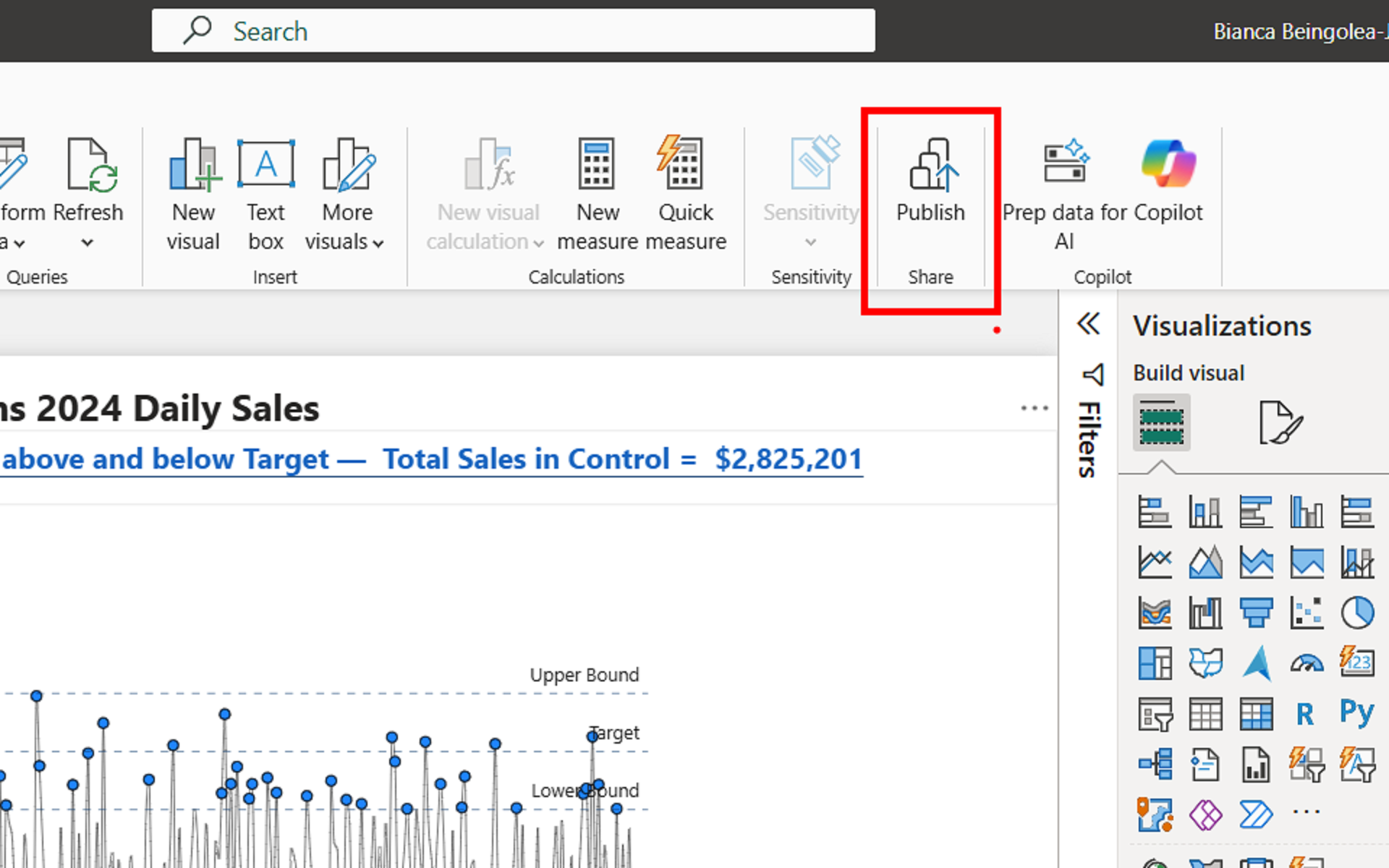
Start by publishing your report to the Power BI Service (app.powerbi.com). To do this, from Power BI, go to the Home tab. Towards the right end of it, you'll find the Publish button. You will be prompted to save your changes before proceeding.
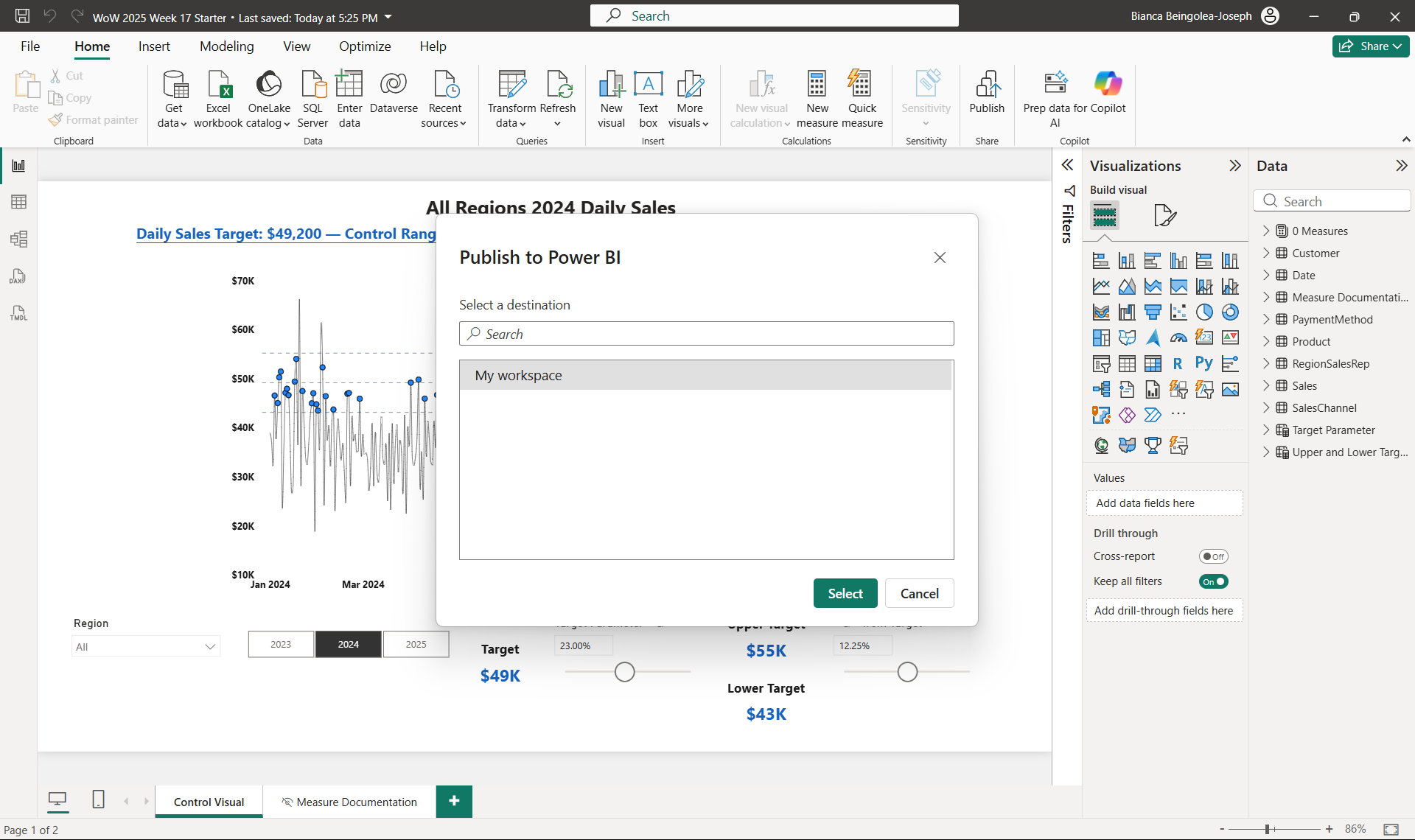
Then, select your desired workspace (I used My workspace for this example)
Keep advancing through the Publish options, until you see a link to Open '<Report Name>.pbix' in Power BI. Click on that.
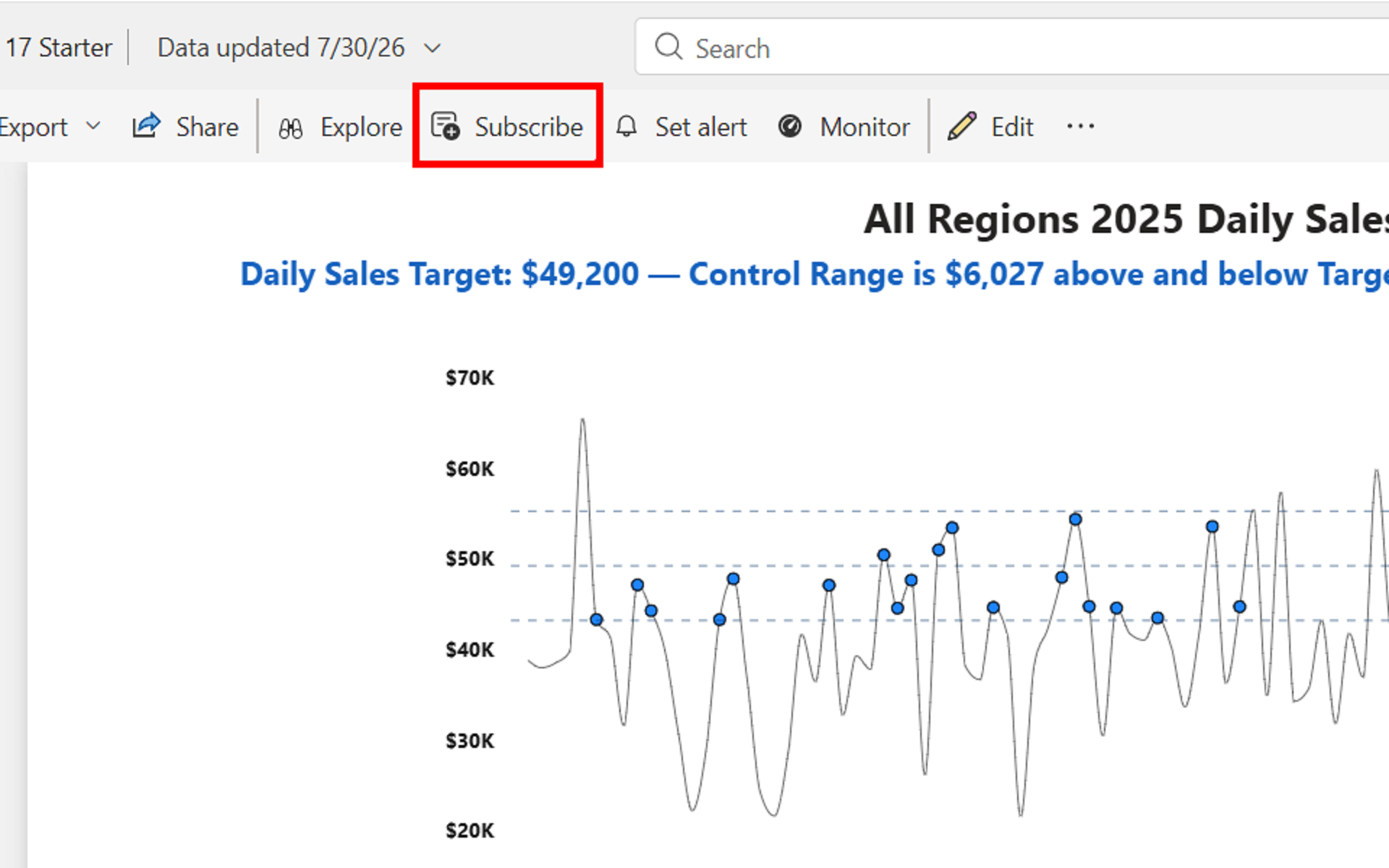
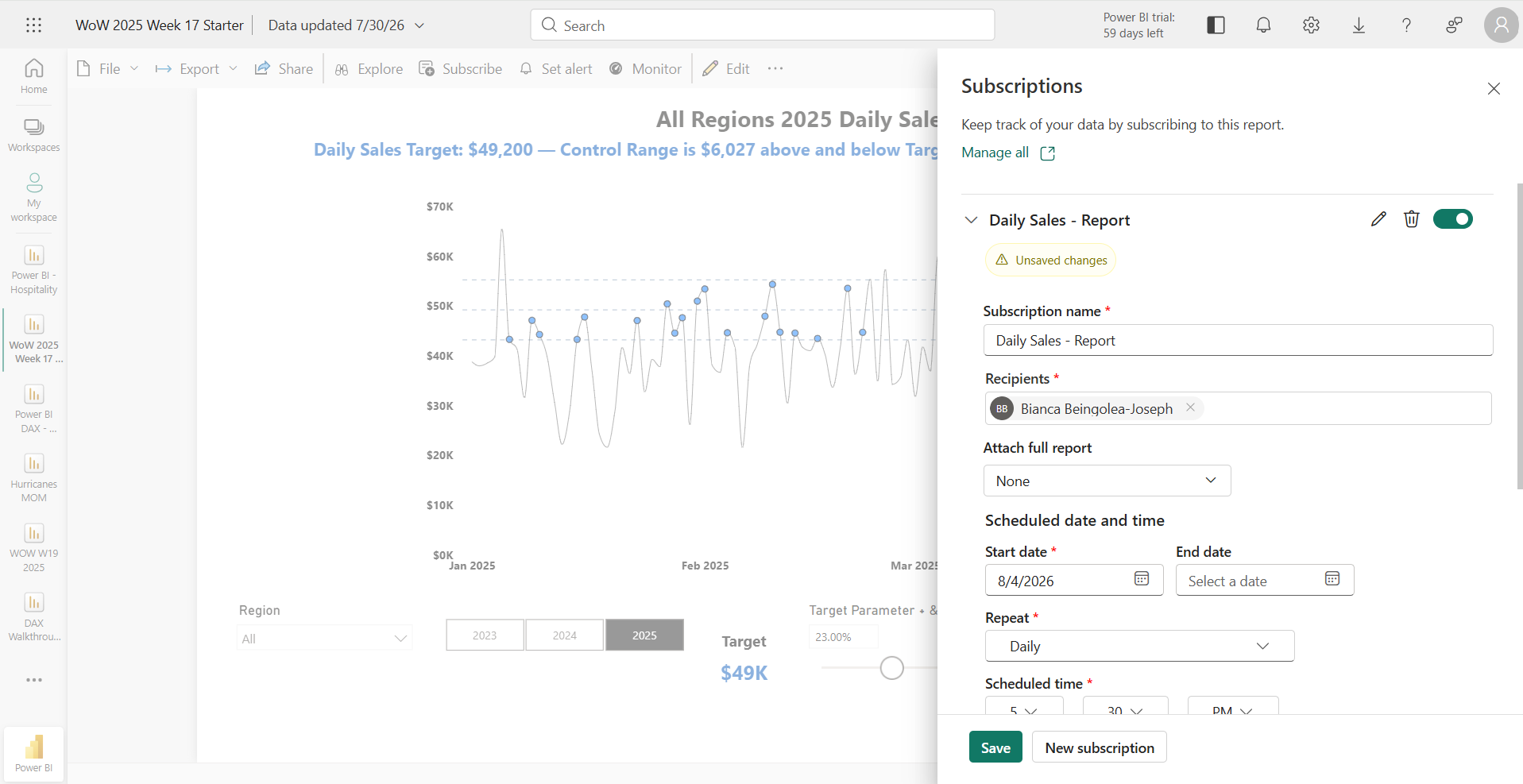
Once you see your report in Power BI's online platform, click Subscribe from the bar above your report.
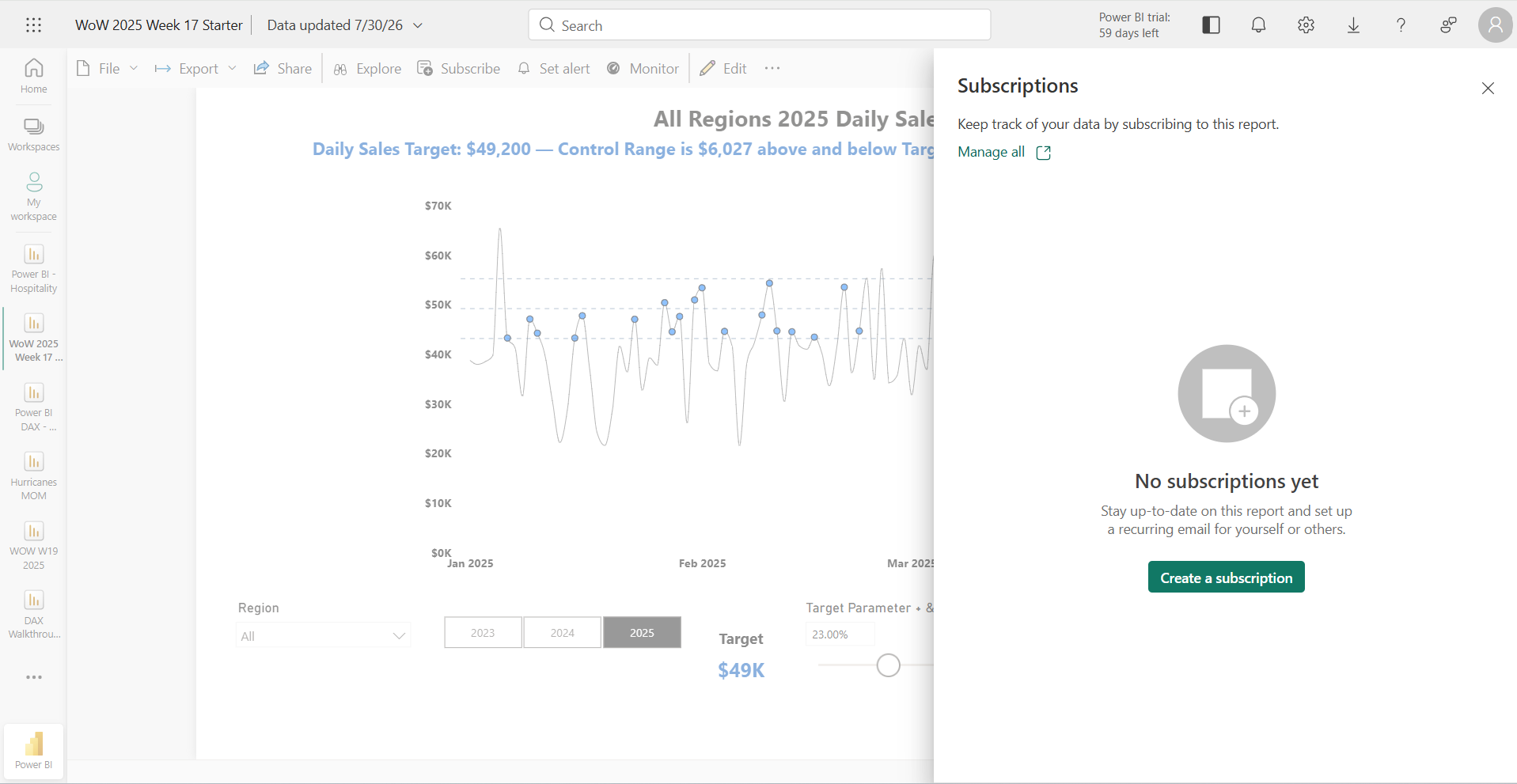
Next, click Create a subscription.
Subsequently, configure the subscription: name/title, date/time of delivery, recipients, etc.
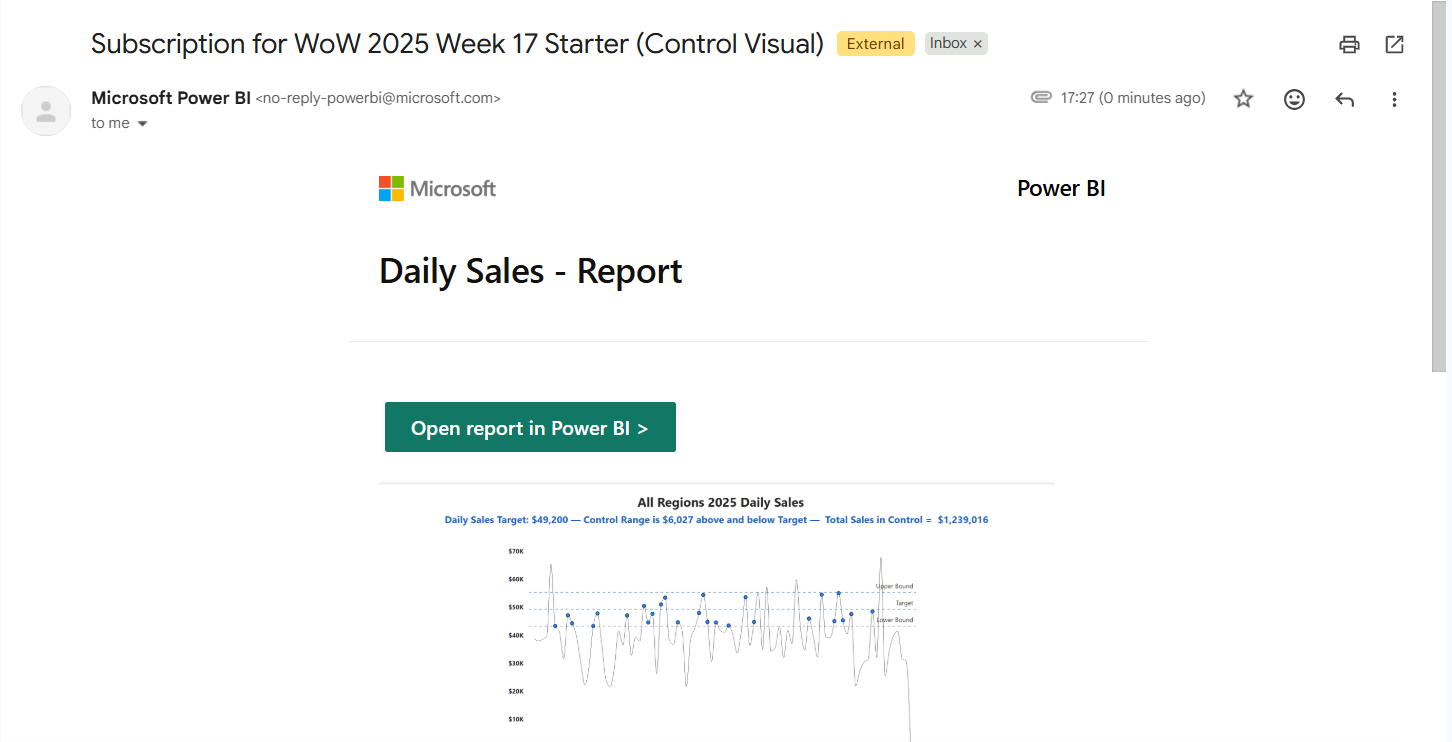
And that's pretty much it! Here's a preview of what the report it looks like in my inbox:
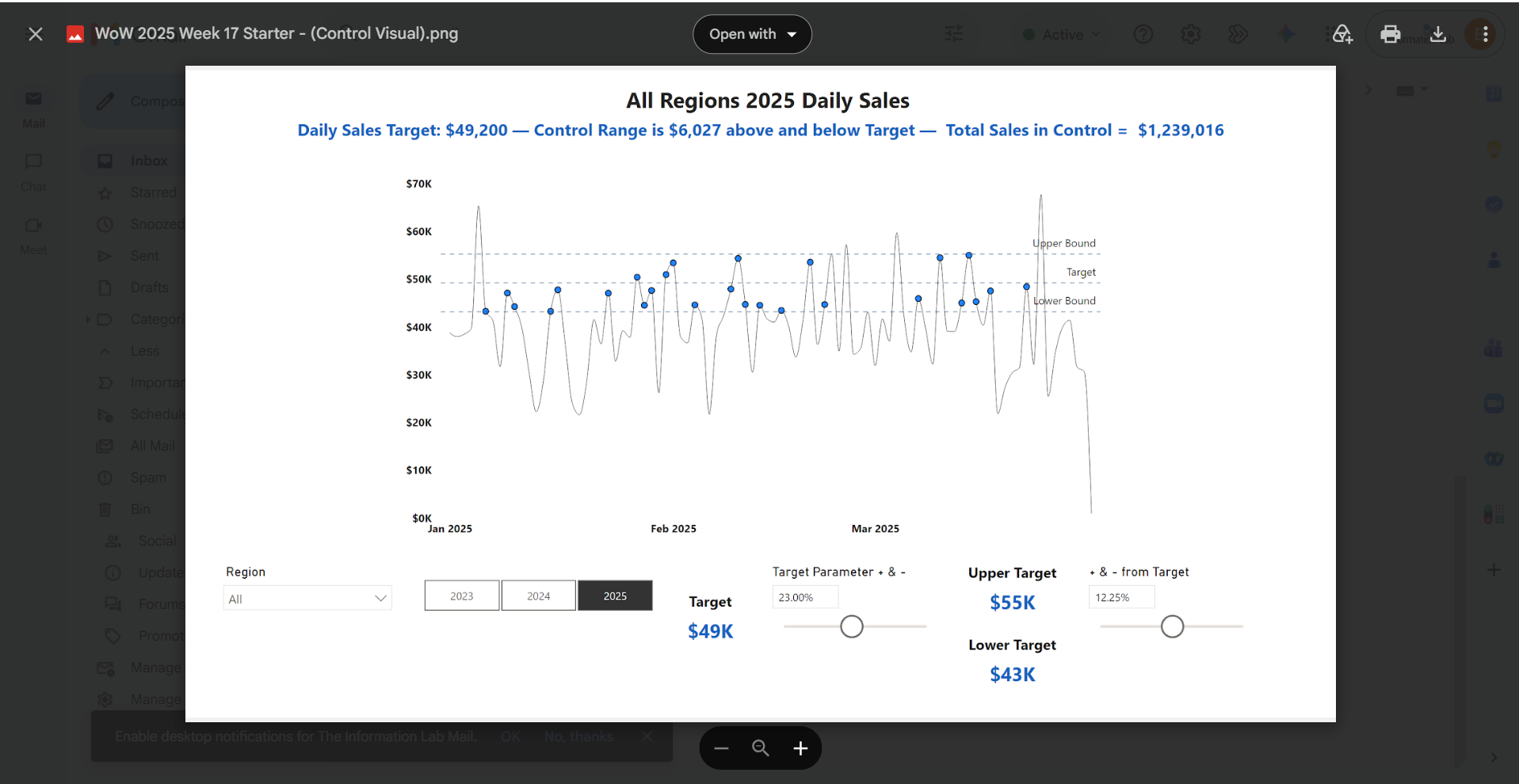
And the attachment included at the end:
Happy subscribing!