In certain datasets, you may find a need to adjust the granularity of some data, or cut out some of the data from a flow after a join or union. In this case, using the Aggregation option can prove useful. Aggregation is used to combine multiple rows into a single row based on specified groupings (specified by group by function), allowing for calculations such as averages and summations.
How to aggregate in Tableau Prep:
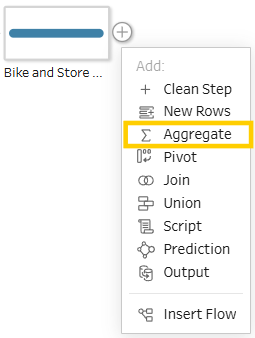
- On the flow plane click the + button, and select Aggregate. This new step will display in the Flow pane and Profile updates to show the aggregate and group fields area.
- Under the additional fields section, you can drag fields from this pane into the Grouped Fields pane (ones that make the row) or to the Aggregated Fields pane (this will be aggregated and presented at the new granularity level, specified by your selected grouped fields).
- To change the aggregation type, click on the group or aggregation type headings to change the group or aggregation type. In the data grid below, you should see a sample of the members of the group or aggregation. Any changes made appear in the Changes pane.
There are additional features in the Aggregation step within Tableau Prep, such as:
- Bulk remove or add fields using remove/add all
- Double clicking a field to add it to either pane
- Search function for fields in the list
- Drag and drop fields between panes
Example
Here we have bike sales data, where we want to create some quick summaries to answer brand and store performance questions. The bike data has had a brand field and order value field added to the dataset. The current dataset is shown below. If you would like to follow along, download the dataset here:

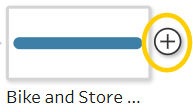
- We want to create Value per Bike, Order Value and Quantity by Brand and Type fields. Firstly, we click on the + sign, and select Aggregate. The flow pane will show below your flow diagram.
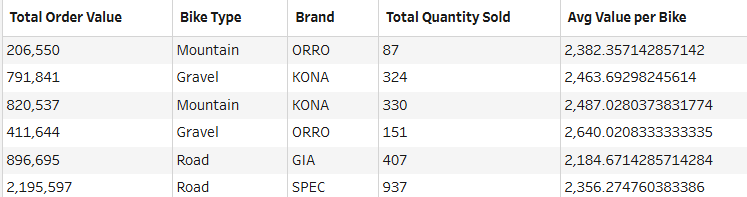
- From the additional fields pane, we want to drag the Brand and Type to the Group By pane, and the Order Value, Quantity and Value per bike to the Aggregated fields pane. Once this is done, only the Value per bike field is incorrect, as we need this to be changed to reflect the average value per bike. In order to do this, click on the SUM text in the Value per Bike field, and select the Average option. Your table should appear as below.