


Within Alteryx, you’ll find the Favourites tab, which displays tools you’re most likely to use when preparing data. In this blog, I’ll briefly explain the functions of these tools for cleansing, parsing and transforming your data.

Preparation Tools
Data Cleansing
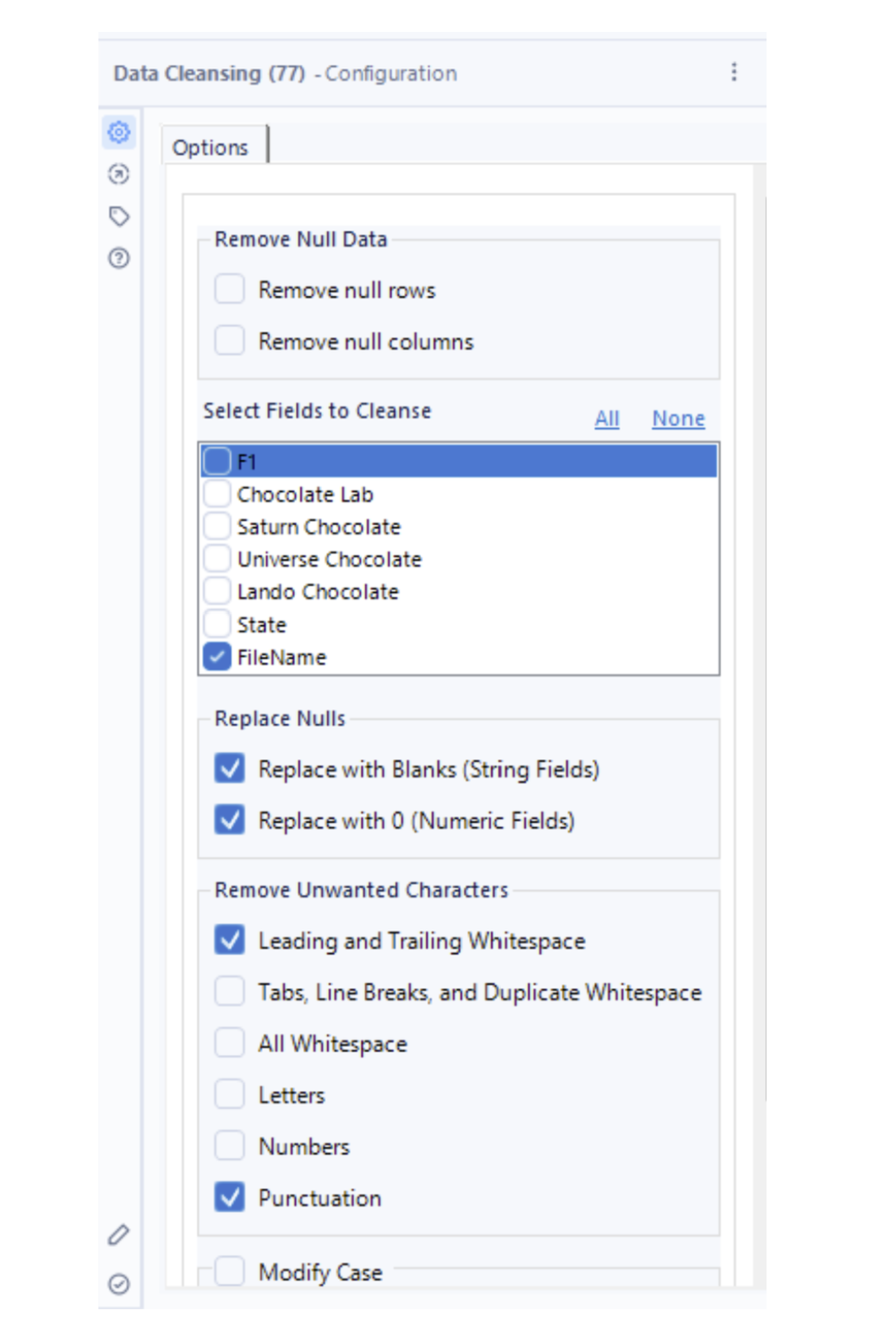
This is often your first step, unless you need to join or union your data or use the Select tool to change data types beforehand. The Data Cleansing tool allows you to remove unwanted characters, modify cases, punctuation, trailing or leading spaces, whitespaces, replace nulls, and remove null rows or columns.
Filter
This tool lets you specify what data to keep based on conditions you set. You can use the Basic Filter option to select a field to filter on or create a filter based on a custom calculation.
Two features I find especially useful are:
- When you use the Basic Filter, you can see the underlying calculation displayed below.
- The tool shows the filtered outputs as well as the excluded data, labelled as T (True) and F (False).

Formula
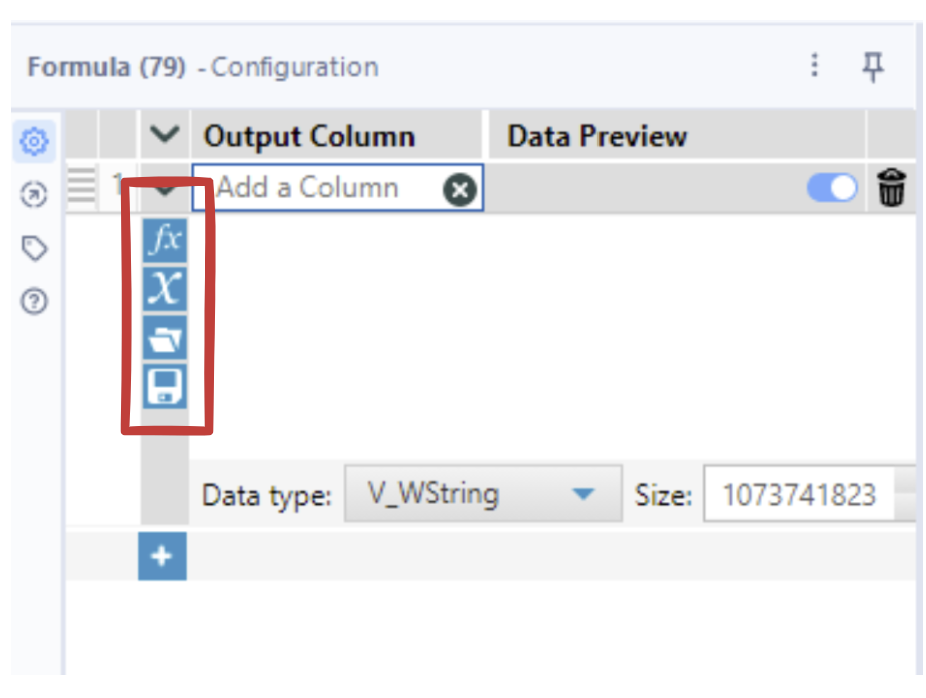
This tool allows you to create calculations or perform operations as needed. Within the Formula tool, you can:
- Explore functions using the fx tab.
- View your dataset’s fields with the x tab.
- Access recent expressions.
- Save expressions for future use.
Sample
This tool lets you remove rows based on a method you specify. For example, the First N Rows option lets you remove the first set number of rows (where “N” is the number you enter). This is useful when your data includes rows with field names or headers you don’t need. You can also use Skip First N Rows, along with four other sampling methods, to control which rows are included or excluded.
Select
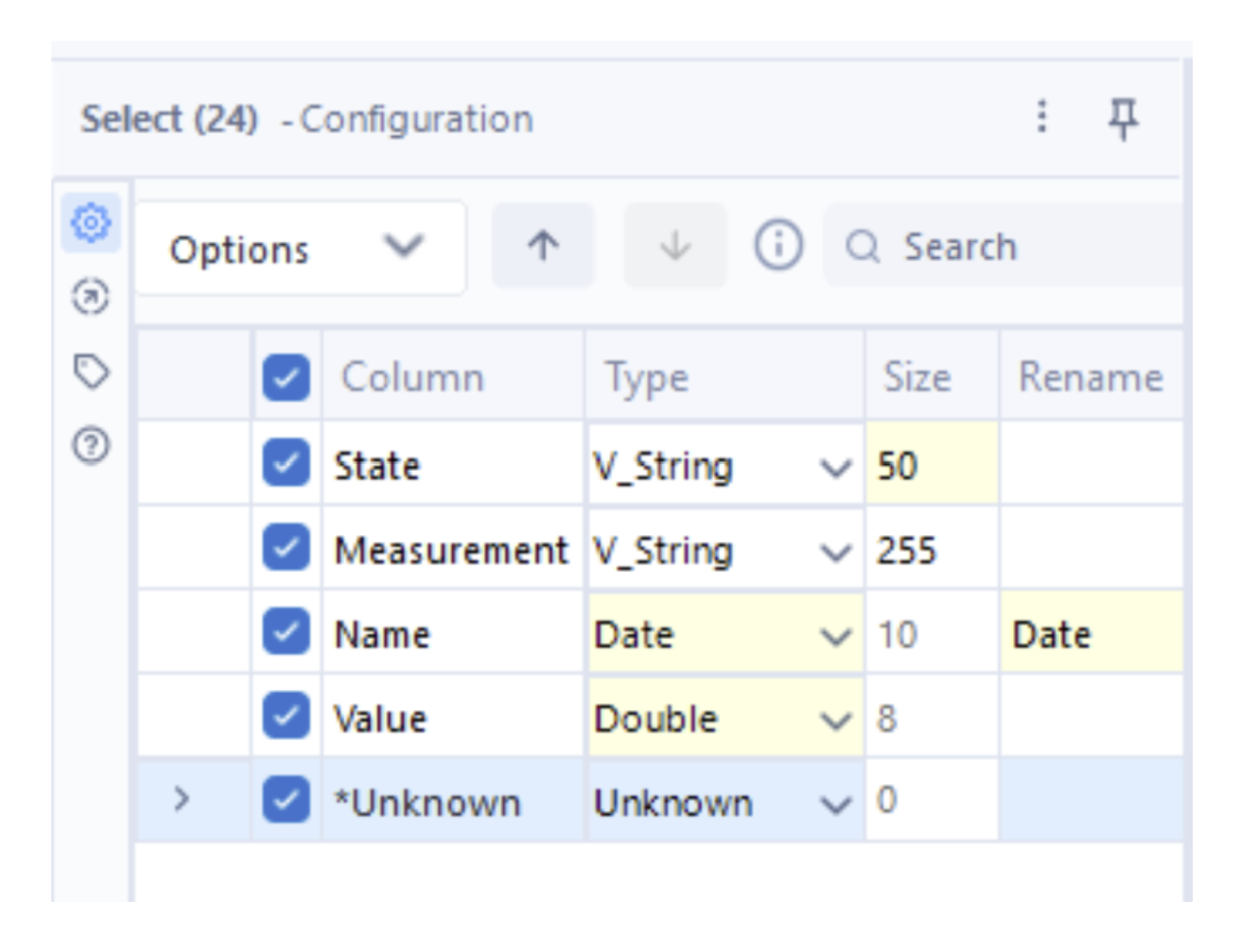
This tool allows you to change data types, set field sizes and rename fields. This step is essential when performing aggregations. It’s important to assign the correct number of characters to each data type, especially when you know the maximum expected length (e.g. state name). While this might not be relevant for fields like product reviews, getting it right ensures optimal workflow performance, especially when dealing with large datasets.
Sort
This tool enables you to sort your data by one or more fields, in either ascending or descending order. Sorting can be especially useful when you need your data ordered before performing calculations like running totals or when you want to ensure consistent row order before exporting your results.
Join Tools
Join
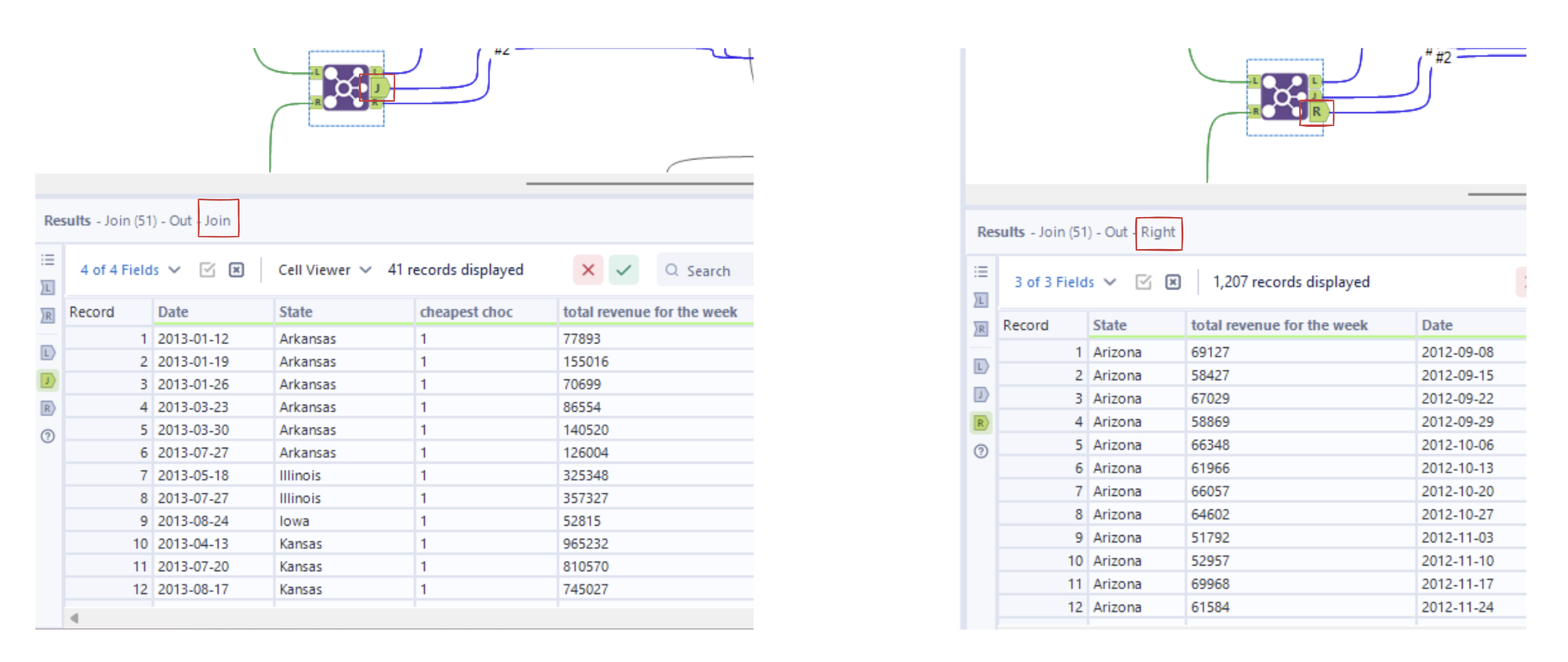
This tool allows you to join two datasets: one table on the left, the other on the right. The Join tool produces three outputs:
- L (Left Outer): records from the left table that don’t match any records in the right table.
- J (Join): records where there’s a match in both tables.
- R (Right Outer): records from the right table that don’t match any records in the left table.
This approach makes it easy to see matched and unmatched records separately, which is especially useful when you’re exploring or troubleshooting your data.
Union
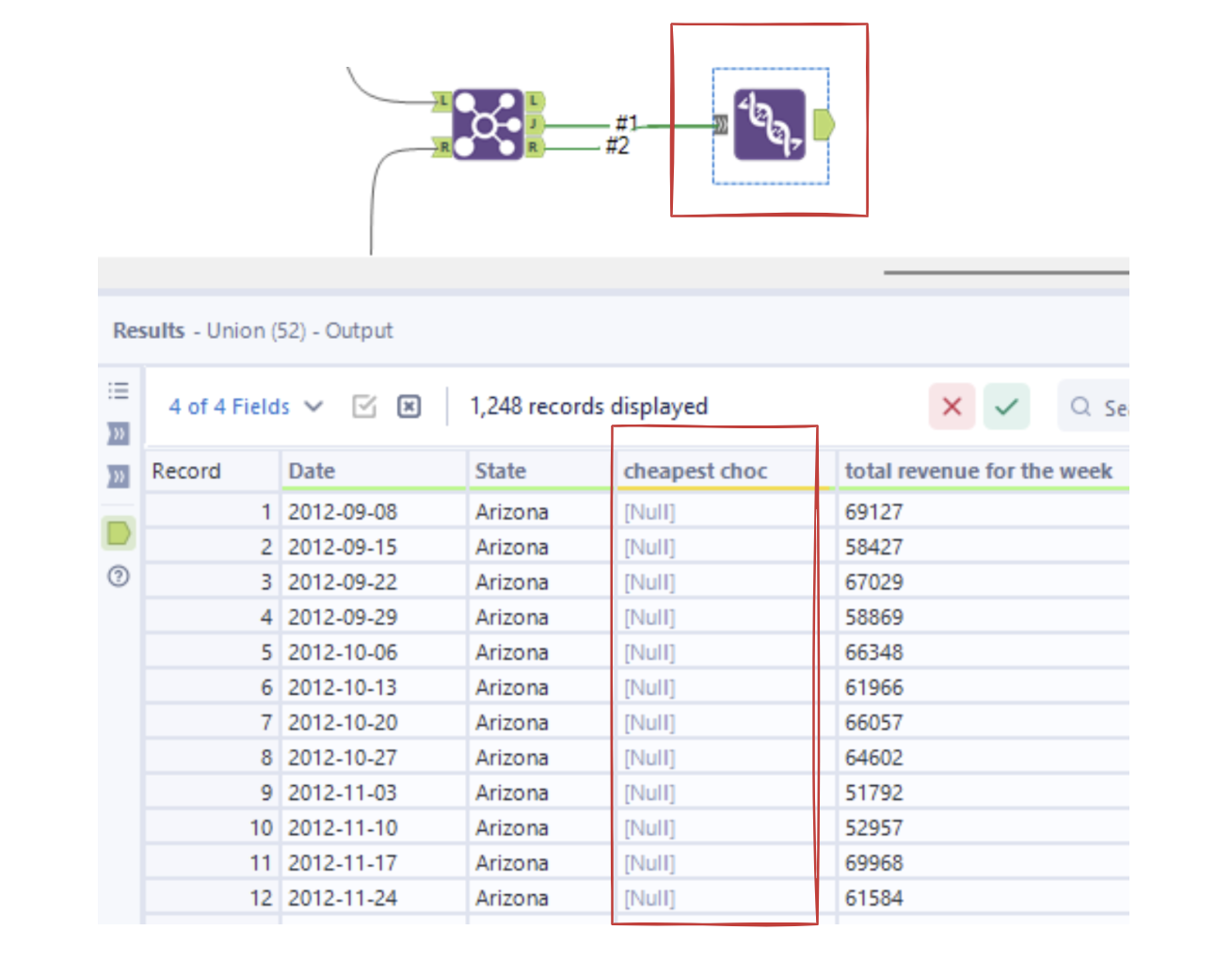
This tool is often used after a join to merge its outputs. For example, if you want all records from the R and J outputs, you can connect them to the Union tool. Where records are missing from the right table, the tool will fill them with nulls.
Parsing Tools
Text to Columns
This tool splits a field into multiple columns or rows using a delimiter you specify. You can define the number of rows or columns for the split and take advantage of advanced options like Ignore Brackets, which ensures data is split accurately even when brackets are present.
Transforming Tools
Summarize
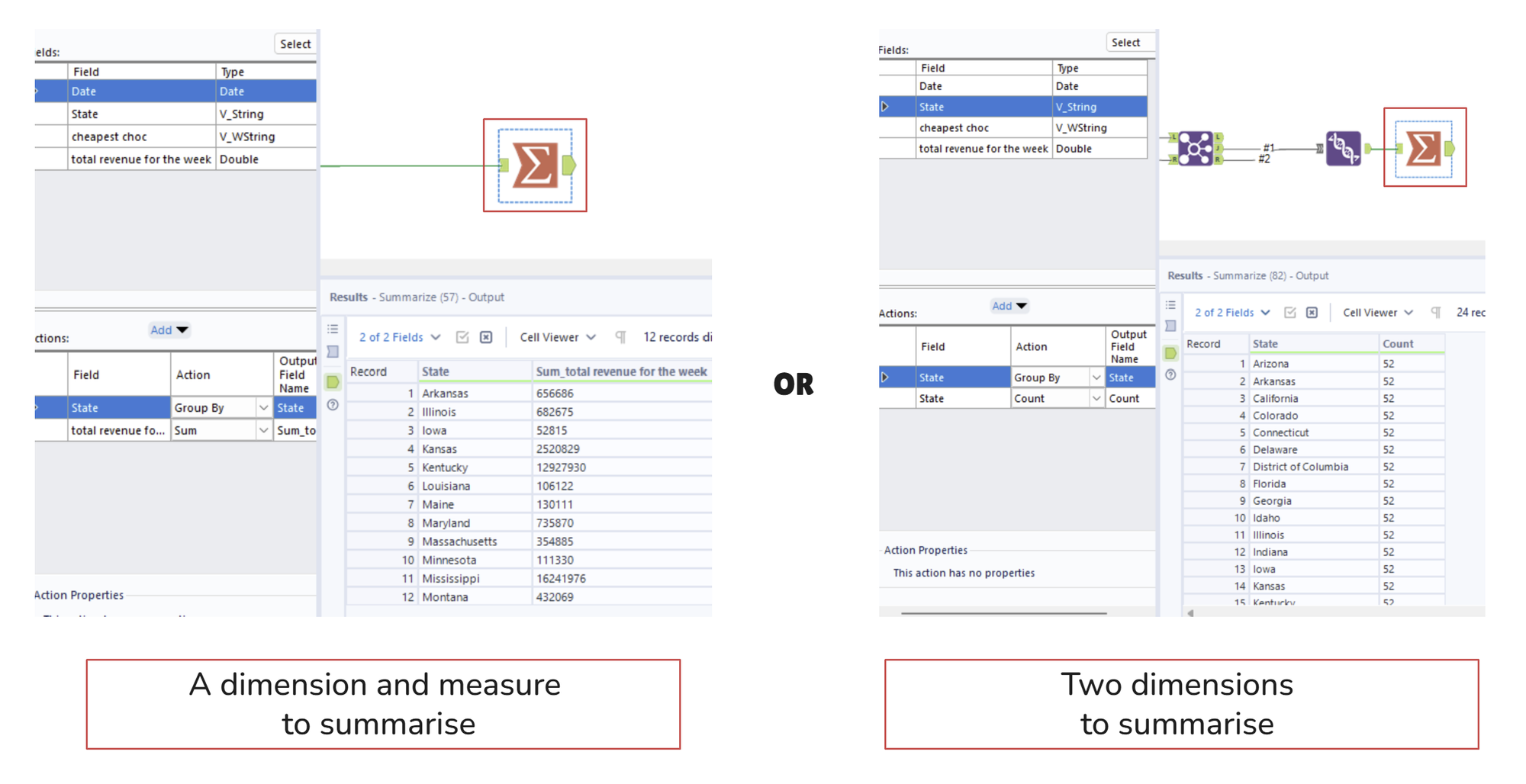
This tool allows you to perform aggregations such as sum, average, maximum, minimum, count or count distinct. You can group by one or more fields (dimensions) and apply aggregations to selected fields (measures). Note that if you choose a dimension as your value, only Count is available since dimensions aren’t numeric.
One or more of these tools will almost certainly appear in your workflow, which makes having them readily accessible in the Favourites tab especially intuitive.