


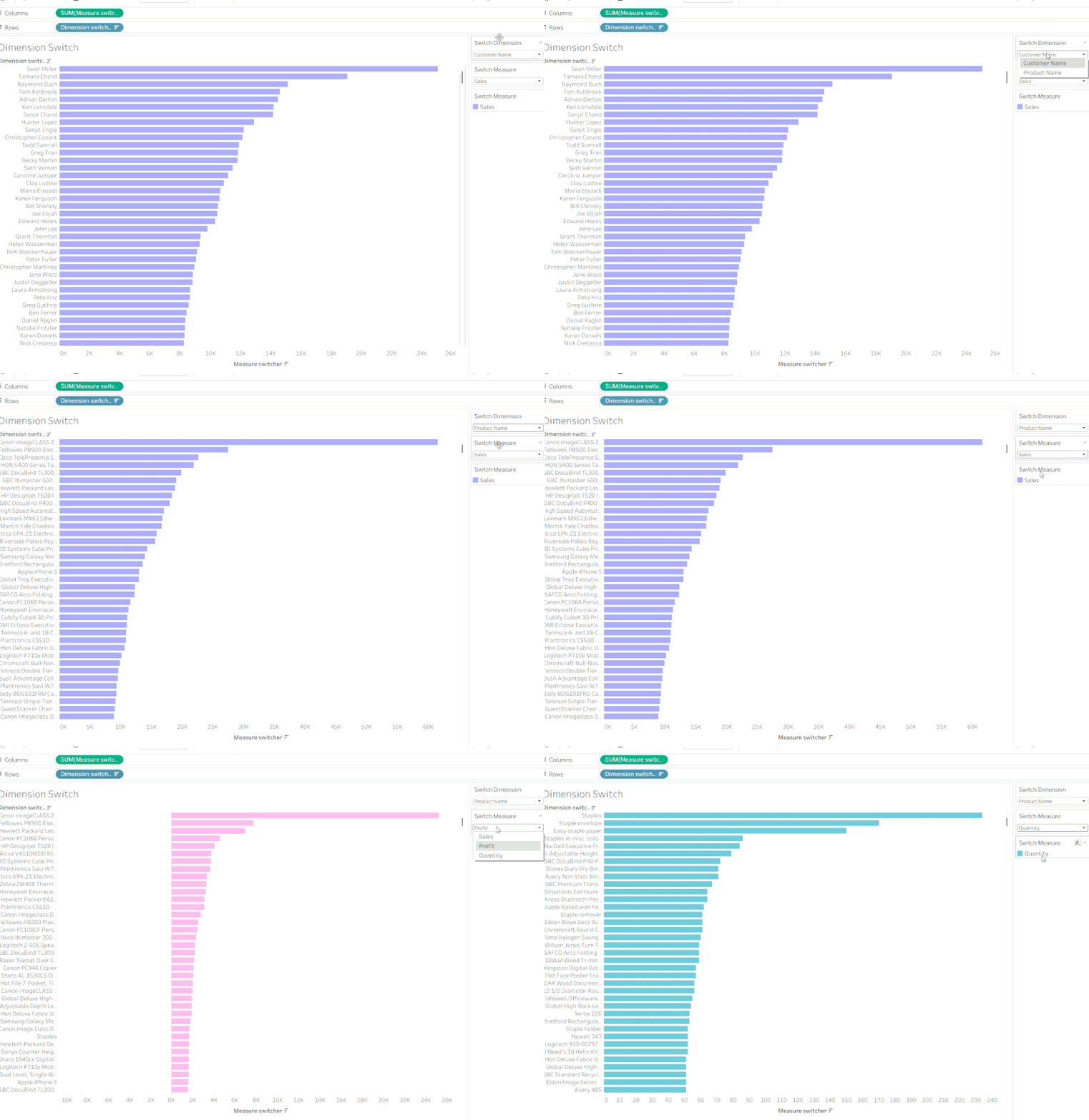
To give your user the power to toggle between different dimensions and measures within a single view, you’ll need to leverage Tableau Parameters. Think of a parameter as a dynamic variable, be it a string, integer, or date that replaces a constant value in your calculations or filters. By integrating this as a 'toggle' on your dashboard, you hand the steering wheel to your audience. Just remember: a parameter is only as powerful as the Calculated Field it lives in.
Ready to build? Let’s dive into this step-by-step tutorial using the Sample Superstore dataset.
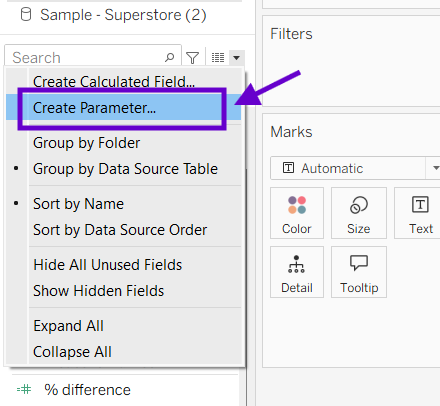
In the Data pane, click the down arrow and select Create Parameter.
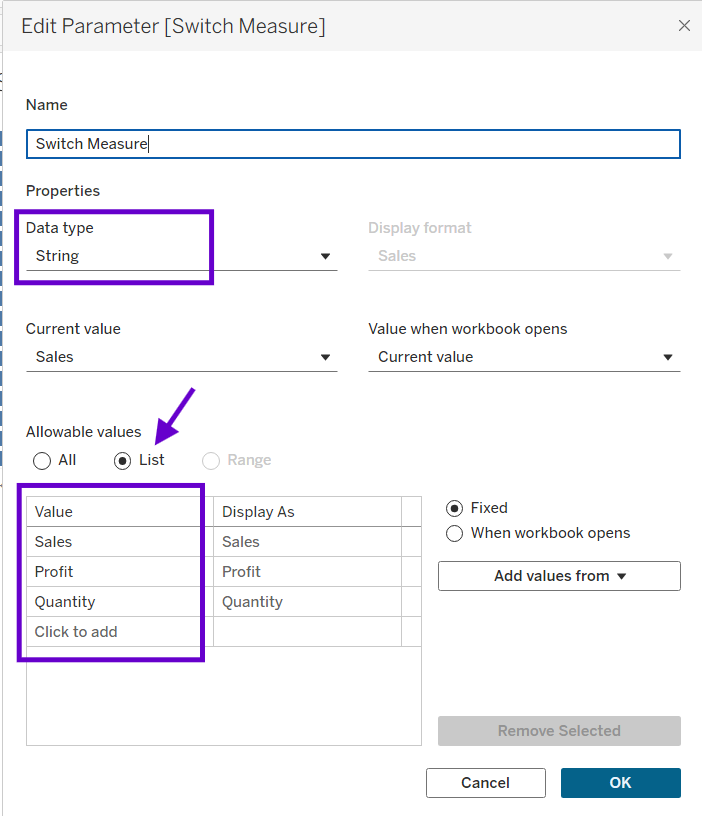
Name it "Switch Measure" and select "String" as the data type - this will allow the variable to substitute the measure fields later in our calculated field. You also want to specify the different values you are switching between, in a list as "Sales", "Profit" and "Quantity".
Right click on the parameter from the data pane and hit "Show Parameter" to bring it into the view. Repeat this process for your dimensions using the string values "Customer Name" and "Product Name".
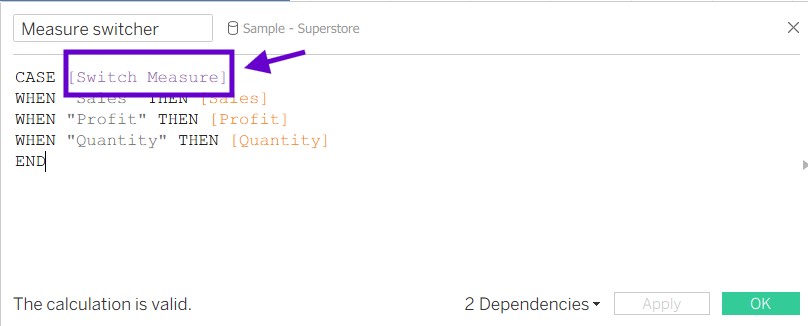
Once that's done, you want to include this new parameter into a Calculated Field named "Switch Measures". The quickest way to do this is using a CASE WHEN statement - so when the variable wrapped inside " " is selected by the user, the visualization will return the value from the equivalent field stated.
Repeat the same process for your "Dimension switcher", then drag the calculated fields onto your columns and rows. Make sure both your "toggles" are visible on the right side panel!
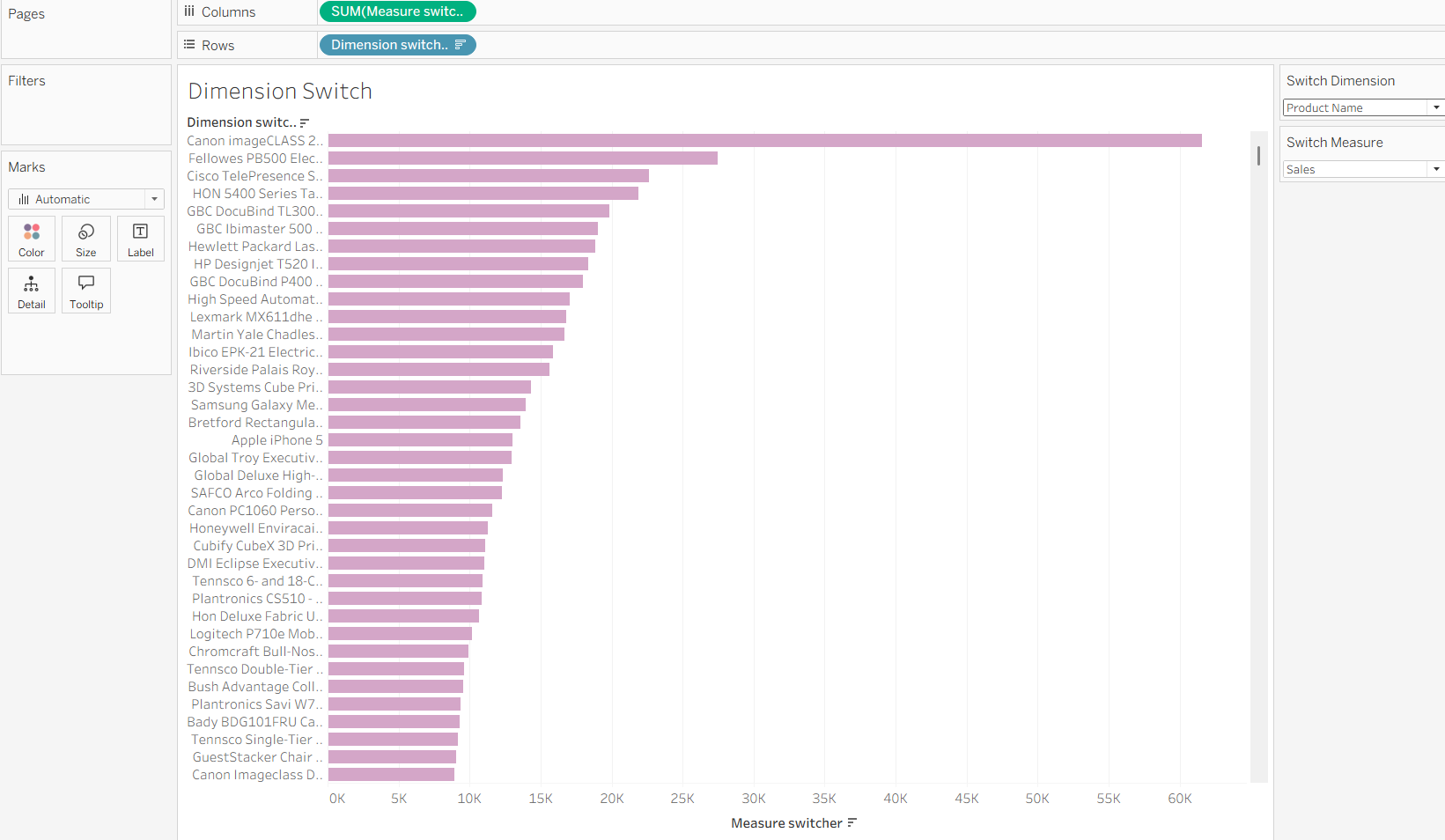
And there you have it! Your interactive dashboard is ready for action. Head over to the side pane and give those toggles a spin to see your visualization instantly change between different dimensions and measures.