


Week 5 of training for DSNY11 has brought many new challenges in Tableau, including wrapping our heads around the many different types of actions that exist in Tableau. During the application process, I familiarized myself with filter and parameter actions, but there are still 4 more to master! In today's blog I am going to be focusing on URL actions, my favorite of the new ones we have covered so far.
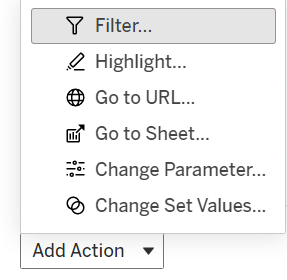
Actions were a revolutionary addition to Tableau's interactivity suite, enabling users to guide their experience by changing how a dashboard functions based on where they click. URL actions allow a dashboard creator to add an unlimited amount of background information by linking a user to an external website! The potential use cases are endless, ranging from sending a user to a product's website on a business dashboard, to directing a user to a wikipedia page to learn more about a section of a dashboard.
In my opinion, the most fun applications of URL actions are ones that are dynamic, meaning they can direct a user to different destinations based on their interaction with the dashboard.
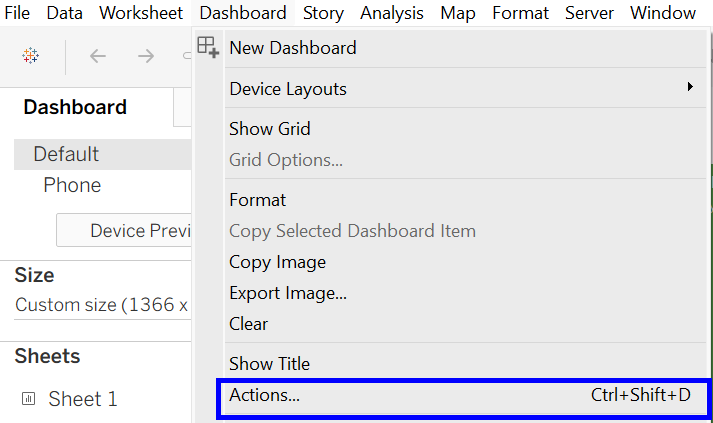
As a first step, I opened the actions menu under the dashboard tab of the toolbar:
Next, I clicked "Add Action" (see the above image) and selected "Go to URL". At this point, you are presented with this screen:
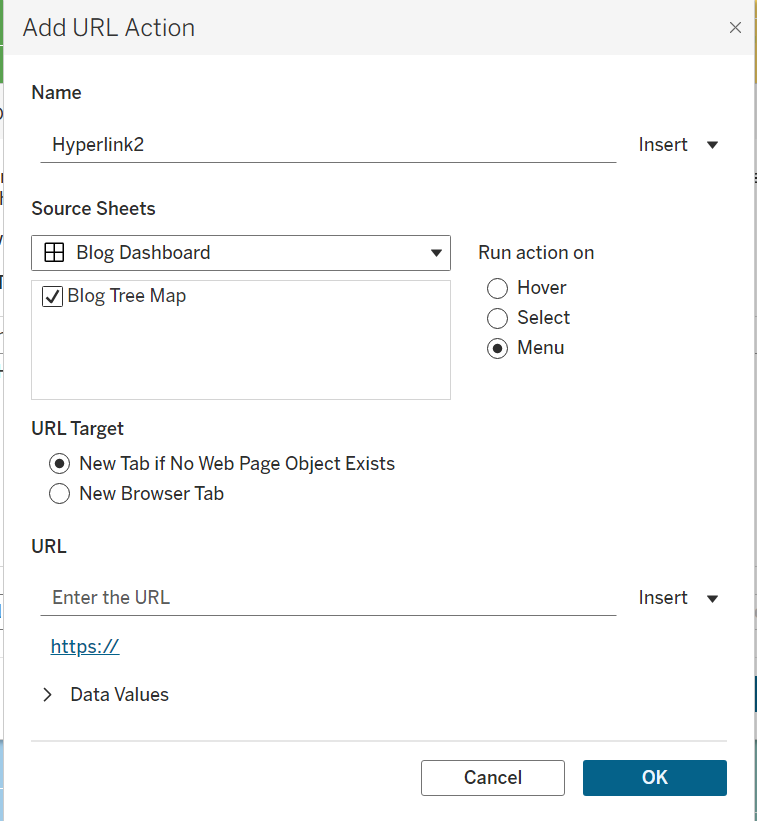
There are many other fantastic resources on this blog about actions in Tableau, so I won't go into too much detail about the mechanics behind creating one, but I will talk about the fun part – adding interactivity! For a simple URL action, you can put any URL you want into the 'Enter the URL' bar, for example https://www.thedataschool.co.uk/blog/. This functionality is used most often for buttons in Tableau dashboards, where a single workbook is designed with the sole purpose of linking the user to a given website.
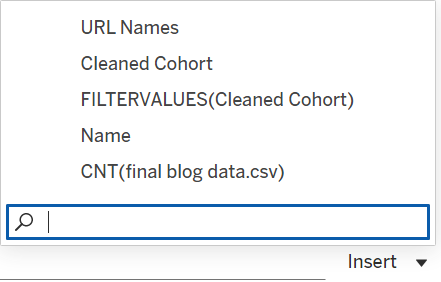
If you click "Insert", you are presented with a list of the fields in the source sheet to use for your URL action. It is possible to insert any data values into your URL by clicking them and creating your URL around them. When you click a field, it will be added into your URL as <my field>. For example, clicking on URL names would give an updated URL of "https://www.thedataschool.co.uk/blog/<URL Names>".
If you have a friendly enough URL, appending or inserting the right strings into a URL is enough information to direct the user to a specific website within a larger directory. One source of well-behaved URLs is wikipedia, where most URLs take the form https://en.wikipedia.org/wiki/<TOPIC>, making them perfect for this sort of action. In my case, I was interested in expanding on my work from my previous blog about blogs. Using the fact that Data School bio pages are always in the form of https://www.thedataschool.co.uk/<first_name - last_name>, with a bit of cleaning of my name field, I was able to match up the formats! Unfortunately, there are misspelled names, nicknames, and people who have been removed from the website, so the dashboard does not function perfectly, but I figured this was a relevant and instructive example of interactive URL links on a public dashboard! I have embedded the dashboard below for you to explore, it shows a tree map of the bloggers in DSNY, with colors representing cohort, sizes representing blog counts, and clicking on a box (hopefully) directing you to that person's bio.
