


First Method: Using Filters
This one is a quick and easy tutorial.
First, let's connect to sample superstore on Tableau desktop and build a quick and easy map.
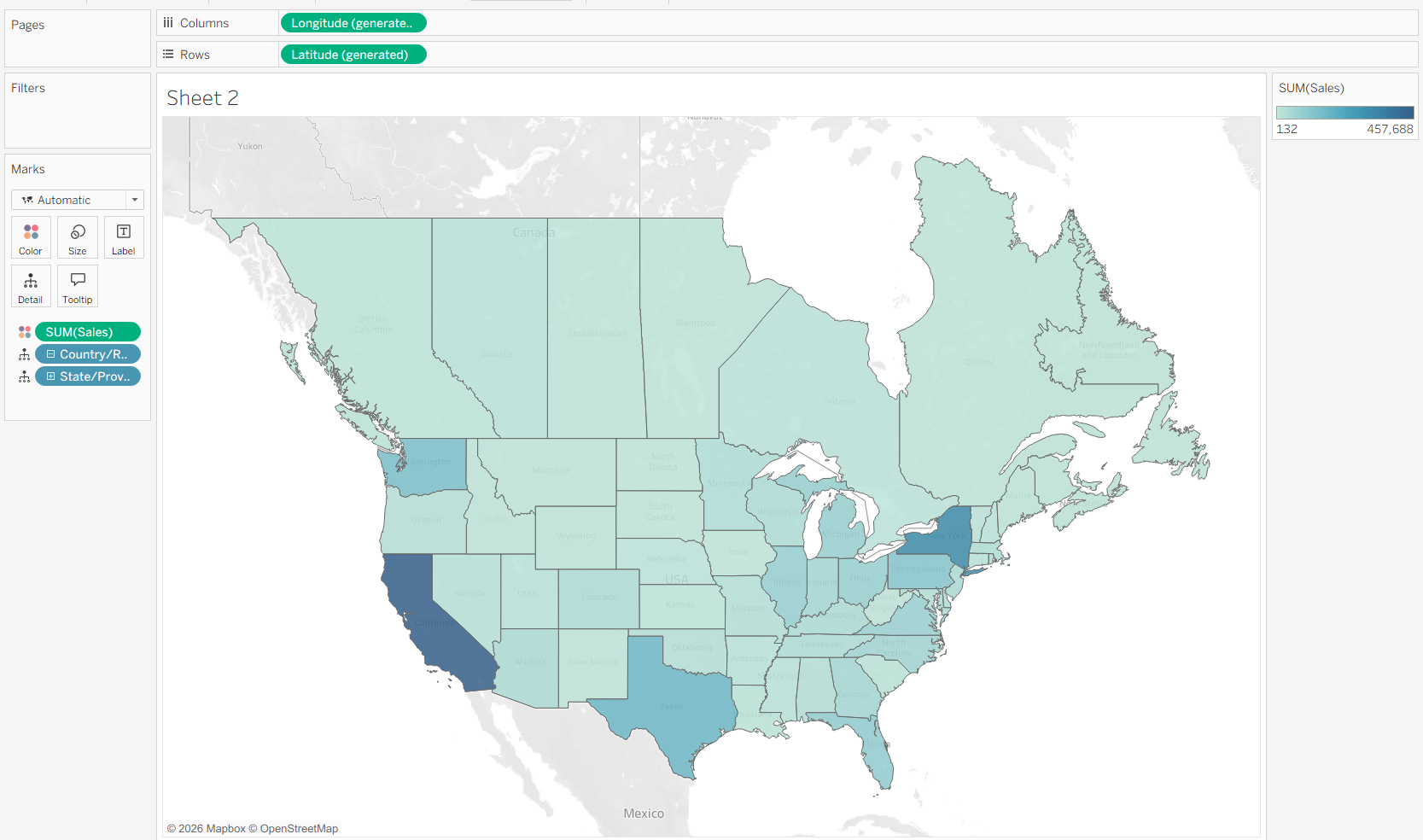
Double click State/Province, put sum(sales) on colour and put region on filter and lets go!
The Map should look something like this.
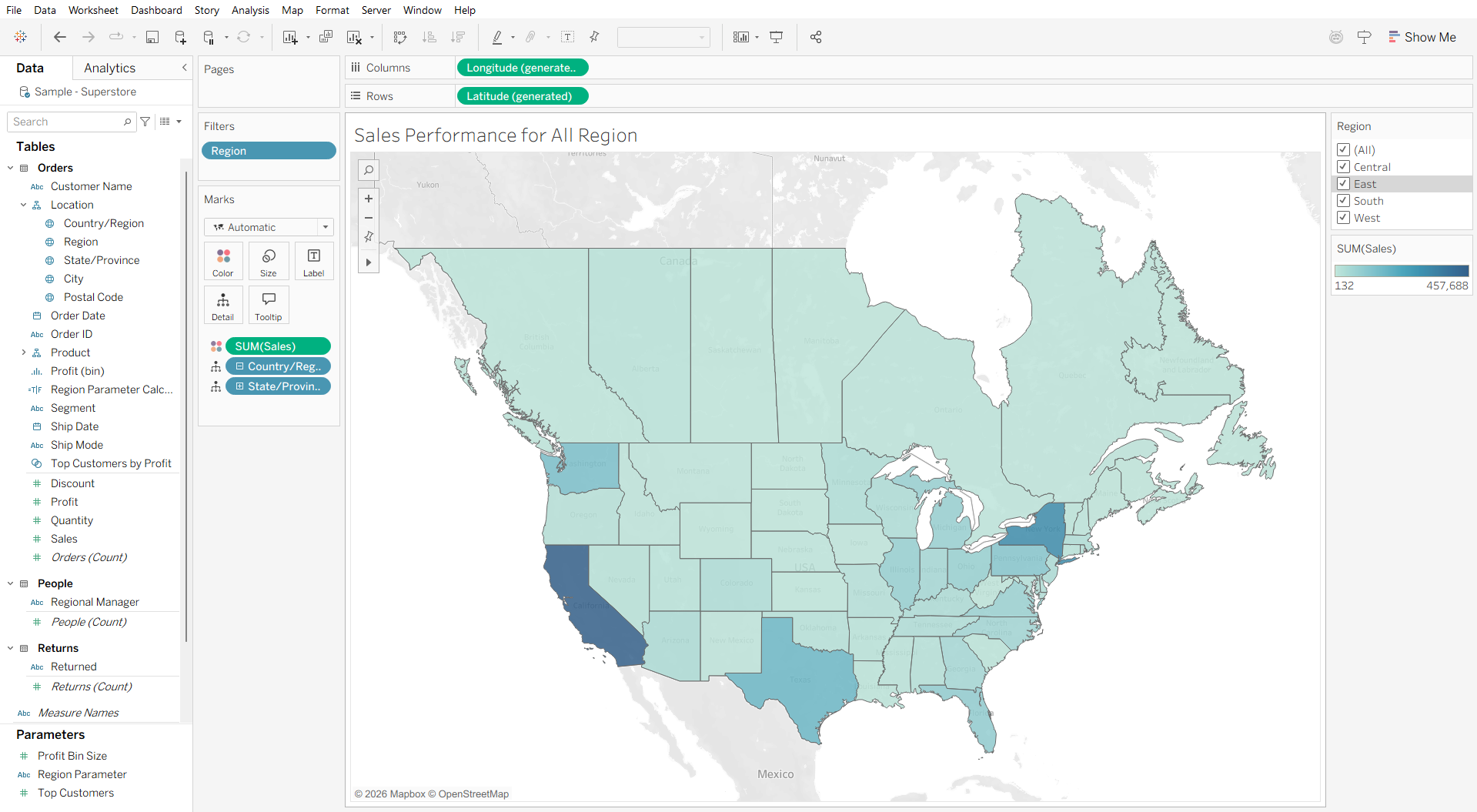
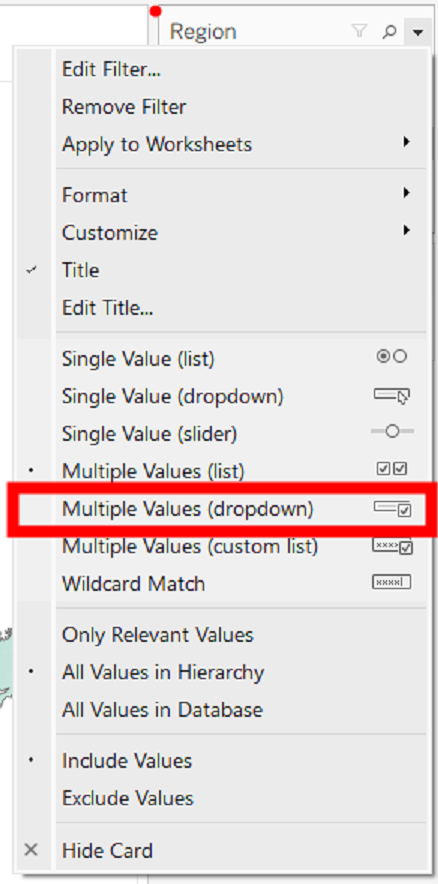
I personally do not like the filter showing up as a list, so, let's change that and make it a dropdown.
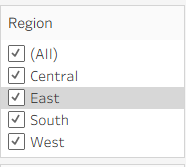
Select this dropdown as we want to be able to filter to more than one value.
Now double click your title and rename it to whatever you would like.
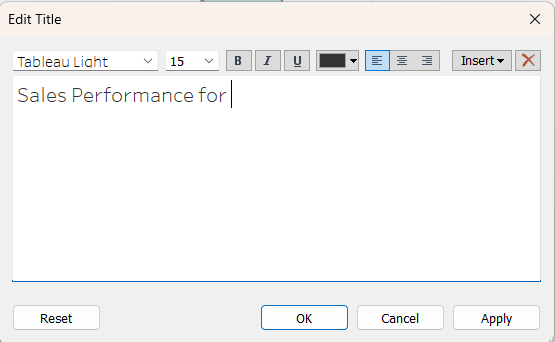
In this title box, click the 'Insert' button and select the value that you want to insert into your title. In our case, we want to make it so whatever region we click on updates in our title.
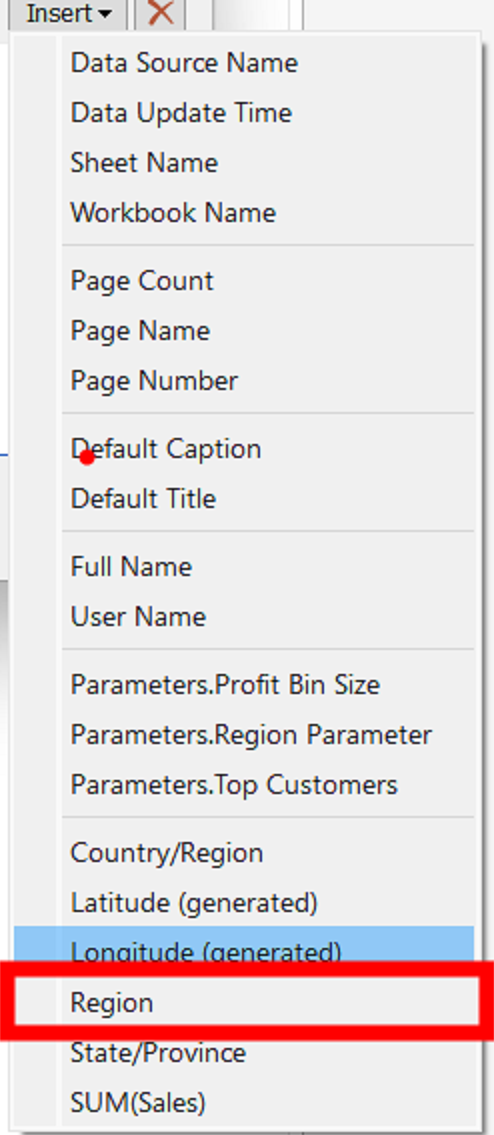
Click 'OK'.
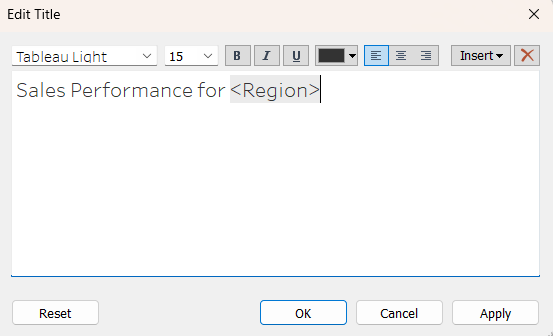
This is the outcome. Super easy! if you change the filter to 'All', the title will also say 'All'.
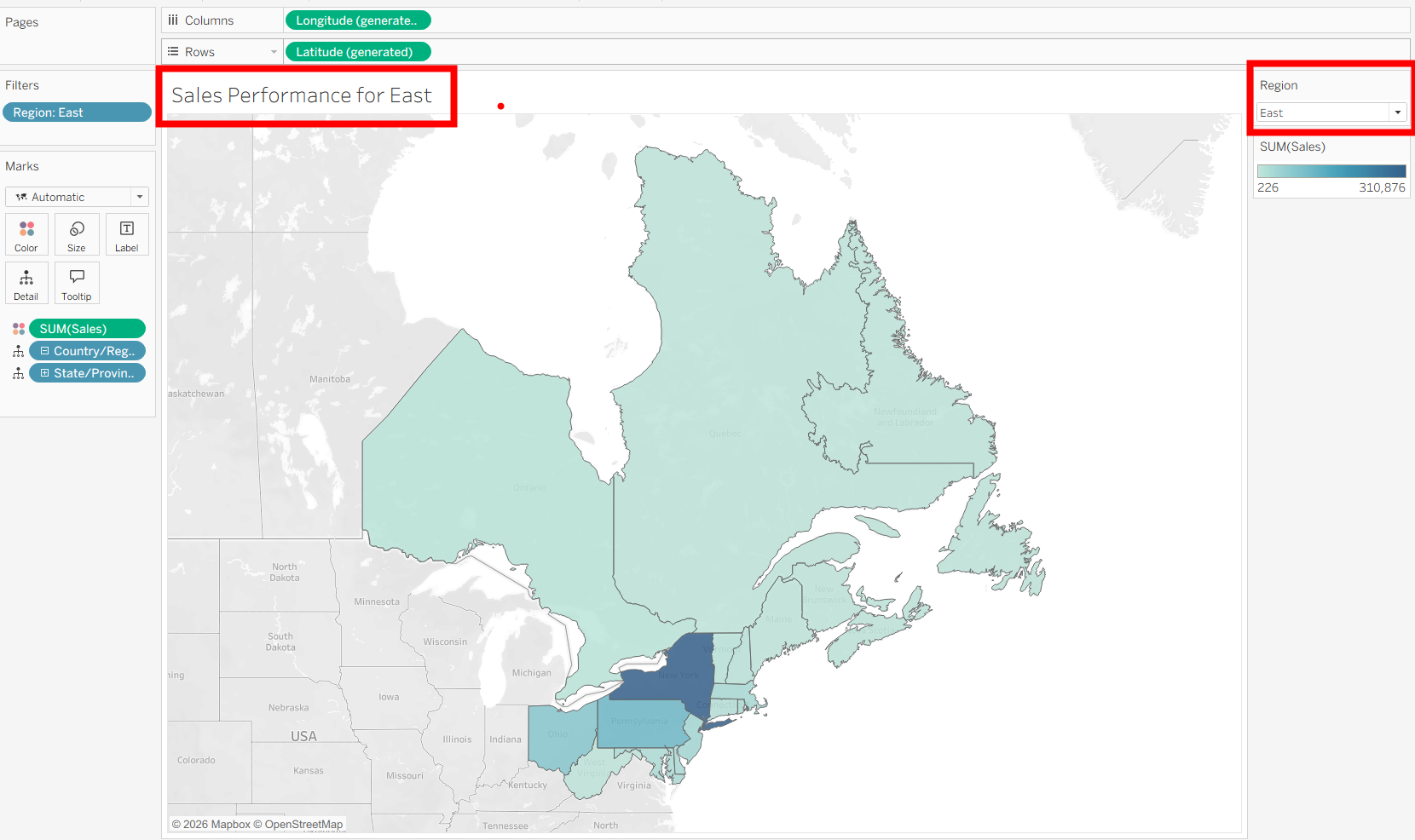
Using Parameters
Build this exact map but this time, do not have anything on filters.
In the contents pane, click this down arrow and select 'Create Parameter'.
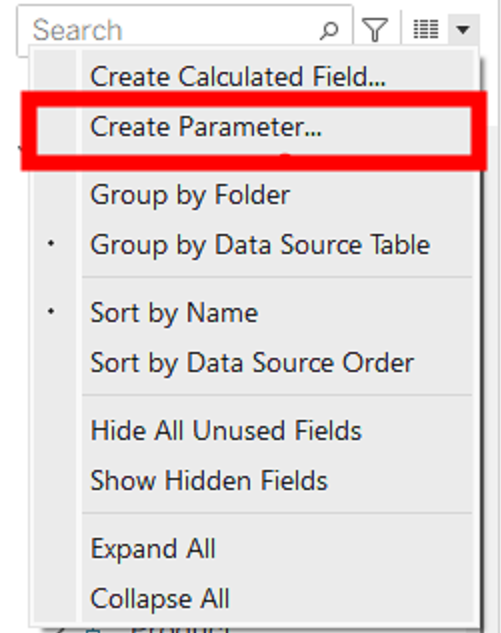
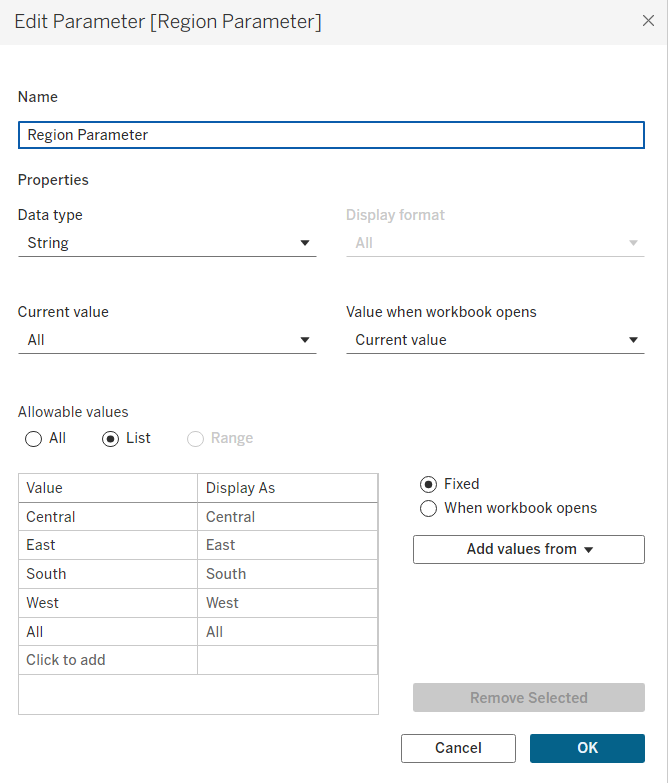
Name your parameter and put in the values of the different regions and have an 'All' section.
Click 'OK'.
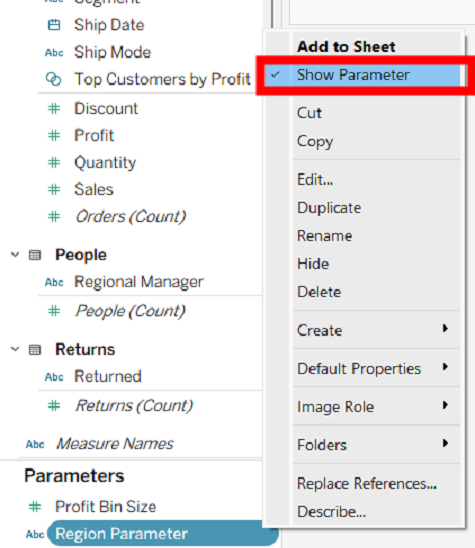
Once this parameter is made, click on it and select 'Show Parameter'.
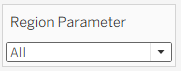
This is what it will look like.
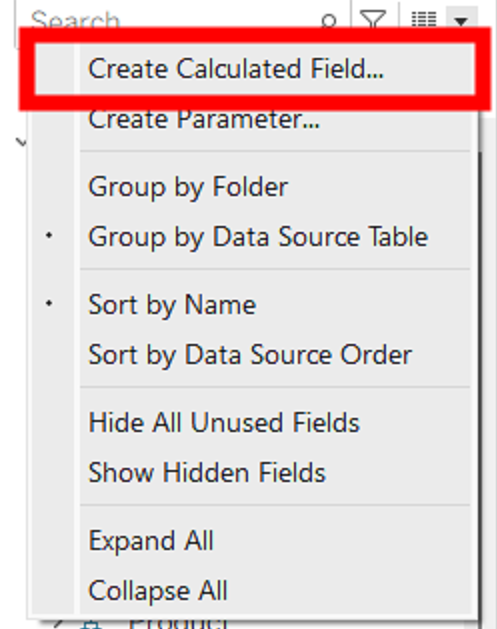
Now go back on the contents pane and click the down arrow again, but this time click 'Create Calculated Field'.
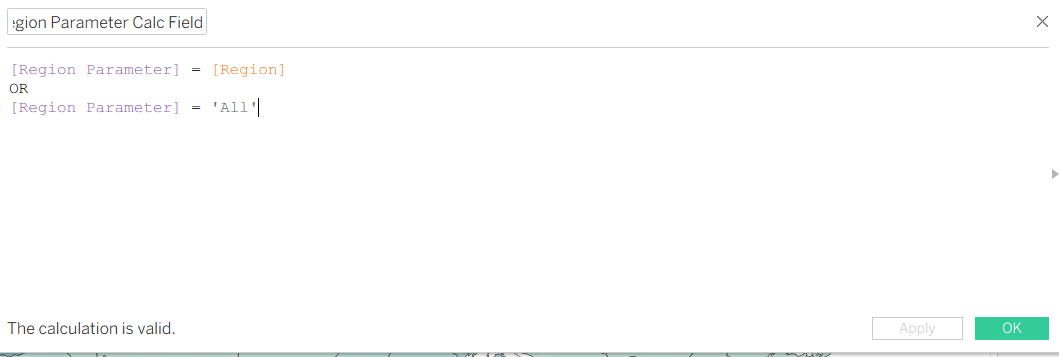
We will need to create a calculate field to link the parameter with the field 'Region' otherwise the parameter is just useless and will not work.
Type in something like this.
Click 'OK'.
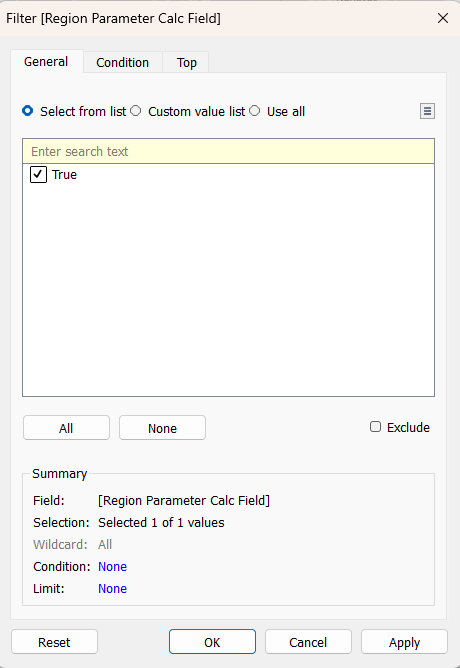
Drag this calculated field into the filters section of your map and tick 'True'.
Click 'OK'.
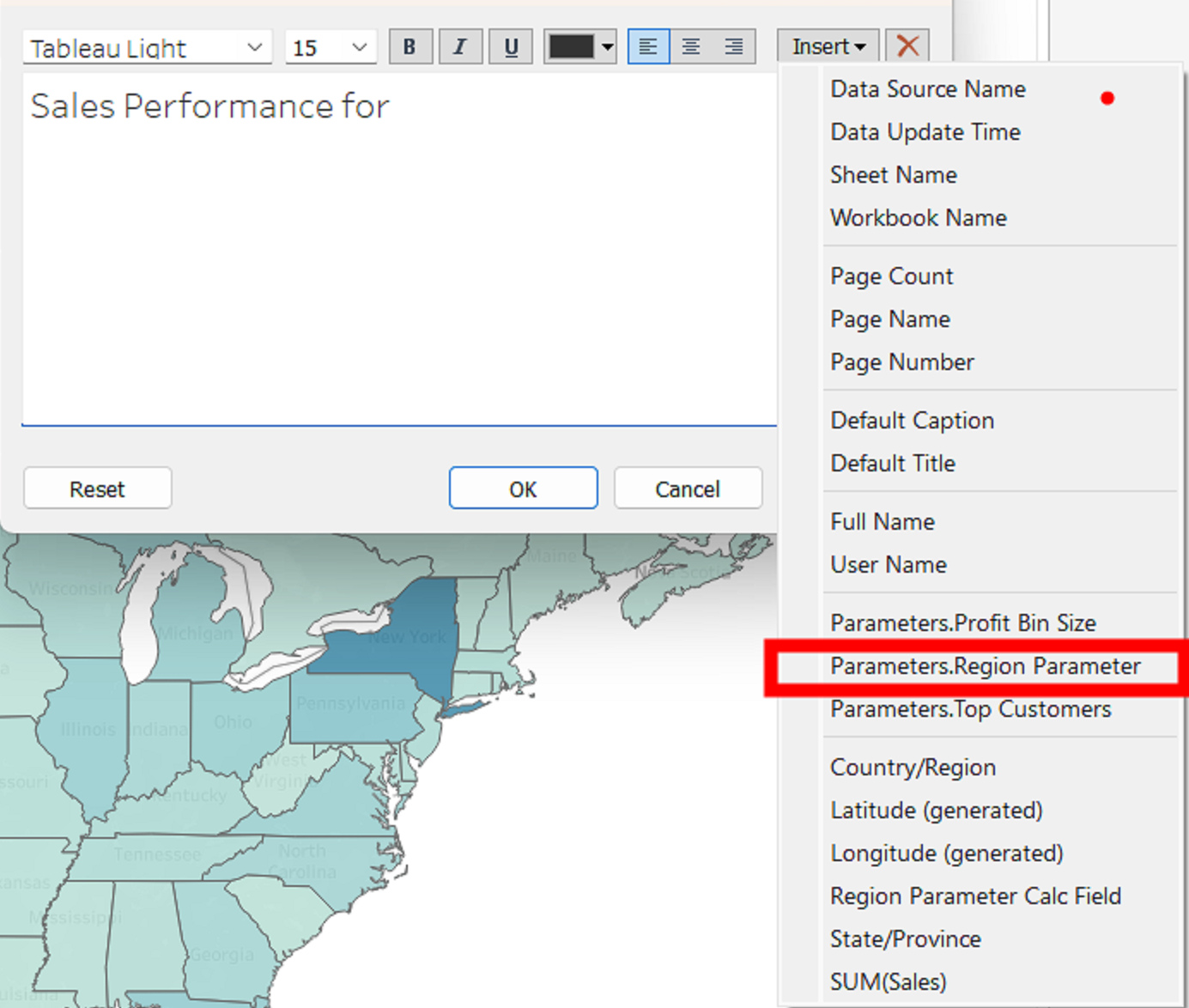
Now double click your title and click insert and find the name of your parameter.
This is what will be inserted into your title and will change based on what is selected on your parameter.
Click 'OK'.
Now this is your finished product.
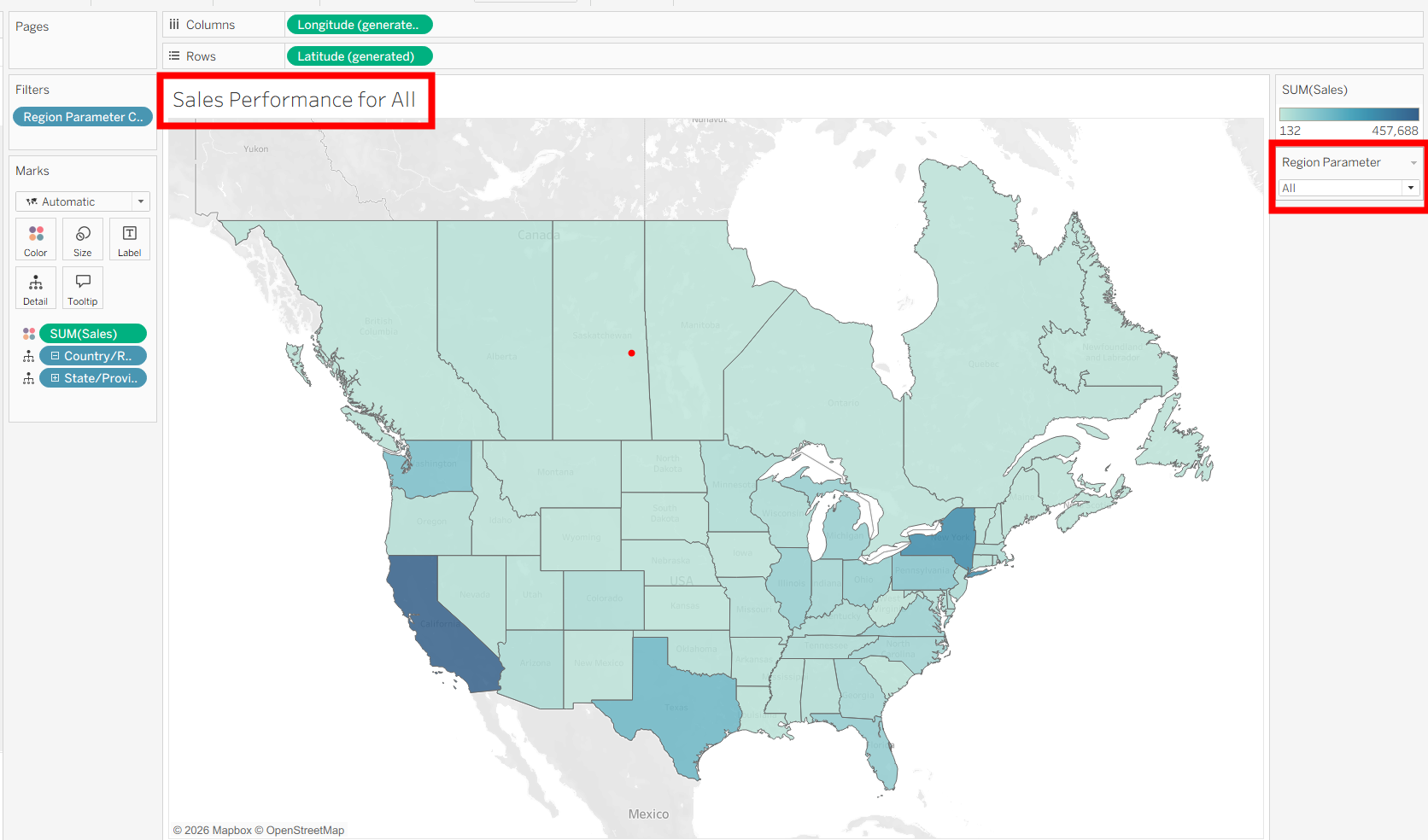
The Filter method is definitely the easier method and also allows you to select 2 of more values to observe, whereas, parameters only allow for one value at a time or 'All'.
Now go crazy with this new found knowledge!