


Unlike calculated fields, which operate on the underlying data before it is visualised, table calculations perform calculations on the results already present in the view.
For every visualisation in Tableau, a virtual table is created based on the dimensions in the view. Dimensions in the following shelves or cards dictate the level of detail of a visualisation:
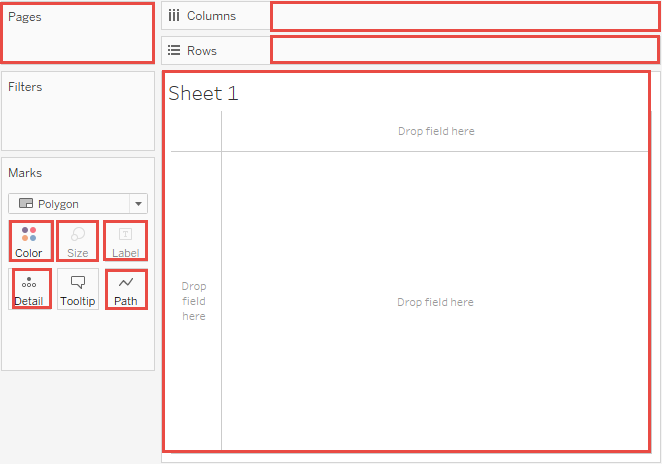
All dimensions within a visualisation's level of detail are used when performing table calculations.
Let's explore table calculations with Sample Superstore. Dragging Category and Sub-Category to rows, year of Order Date to columns and sum of Profit to text gives a table like this:
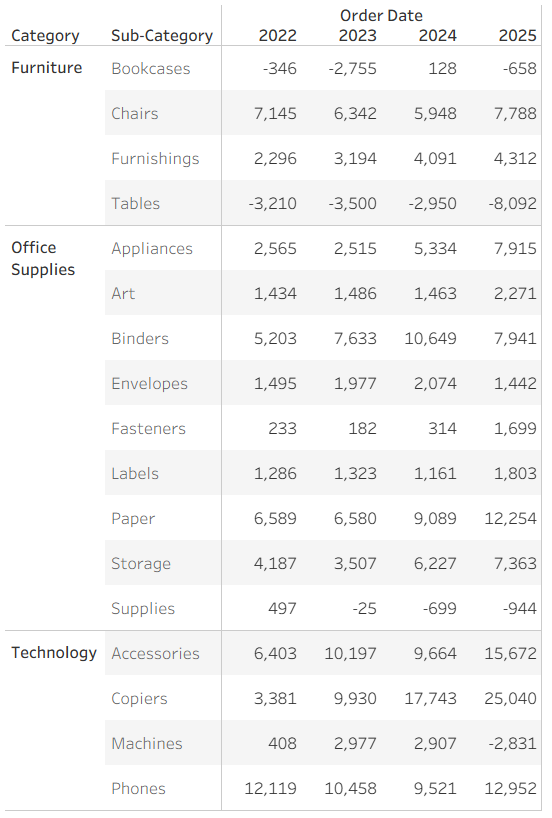
Table calculations can be added by right clicking on the measure - SUM(Profit) in our case - and clicking either 'Add Table Calculation' or 'Quick Table Calculation'.
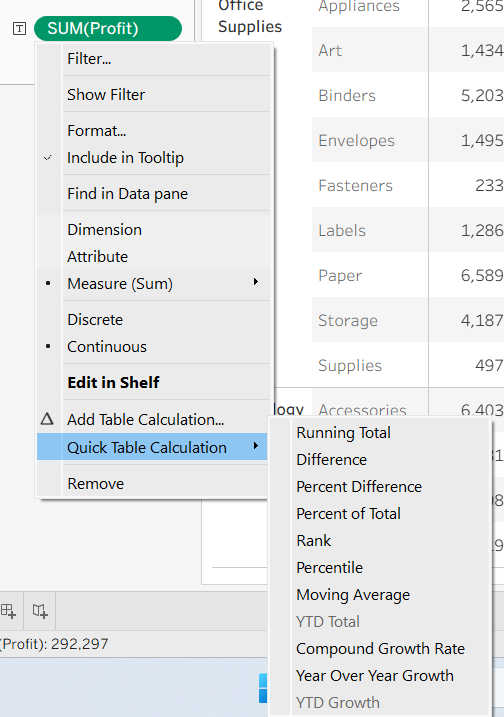
Selecting 'Running Total', dragging in an another sum of Profit to text, and with a bit of formatting, we get a table like this:
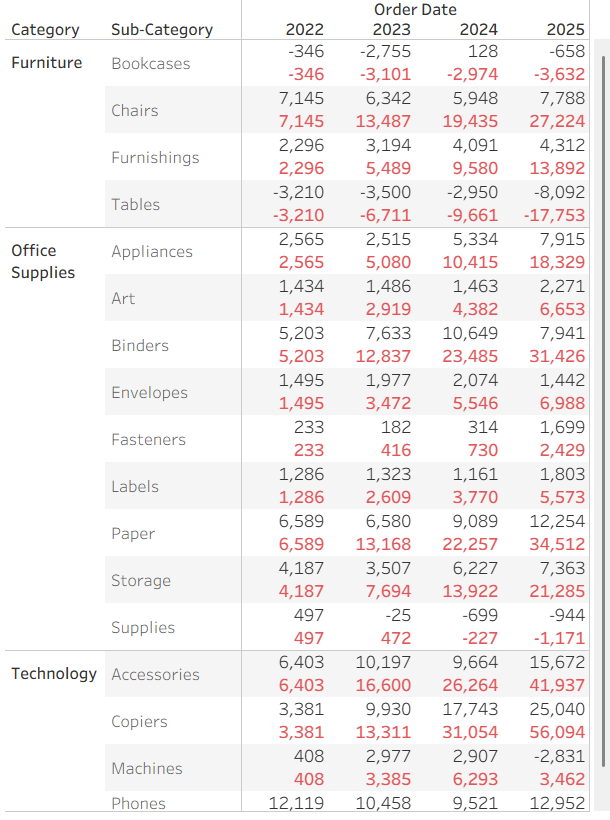
Where the values in red are from the running sum of Profit. The running sum is resetting after each new Sub-Category. The value for the year 2025, for each Sub-Category, is the total profit across all years for that Sub-Category.
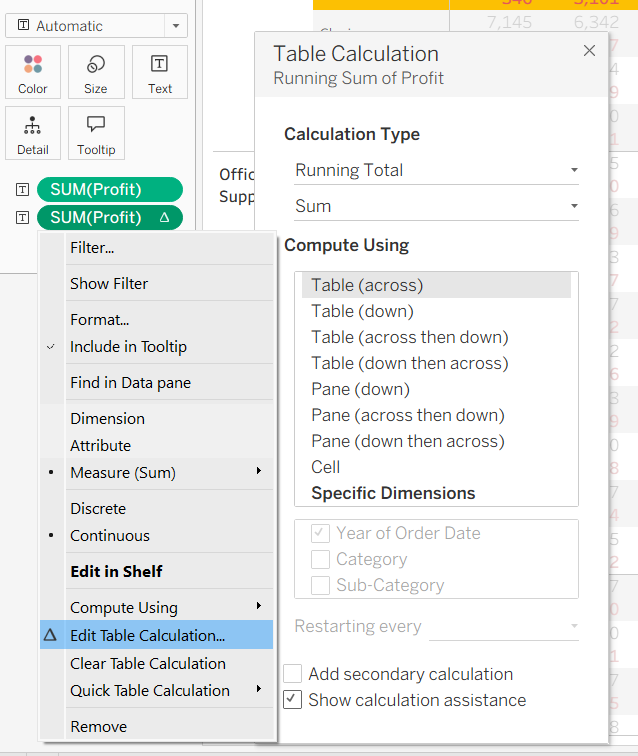
Clicking on 'Edit Table Calculation,' we see that Tableau defaults to 'Table (across),' meaning the computation is performed width-wise and restarts after each row. See here for more information on table calculation directions and the meanings of 'Table,' 'Pane' and 'Cell': https://help.tableau.com/current/pro/desktop/en-us/calculations_tablecalculations.htm
Rather than performing table calculations along a table, cell or pane, and rather than specifying directions, a better practice is to perform the table calculation along specific dimensions. Clicking on 'Specific Dimensions' within the same dialogue box as above allow us to check or uncheck the dimensions in the view of the visualisation.
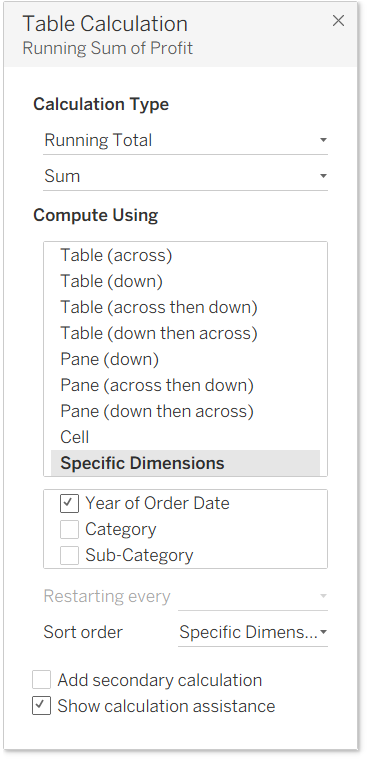
Checked dimensions are known as addressing fields and unchecked dimensions are partitioning fields. The table calculation is performed separately within each partition of the partitioning fields - in our case, restarting for every Sub-Category and Category. The dimensions upon which the calculation is performed - year of Order Date in our case - are known as addressing fields.
What if we wanted to have the running sum to run separately for each year, ignoring differences in Sub-Categories and Categories? We'd simply make year of Order Date the partitioning field by leaving it unchecked.
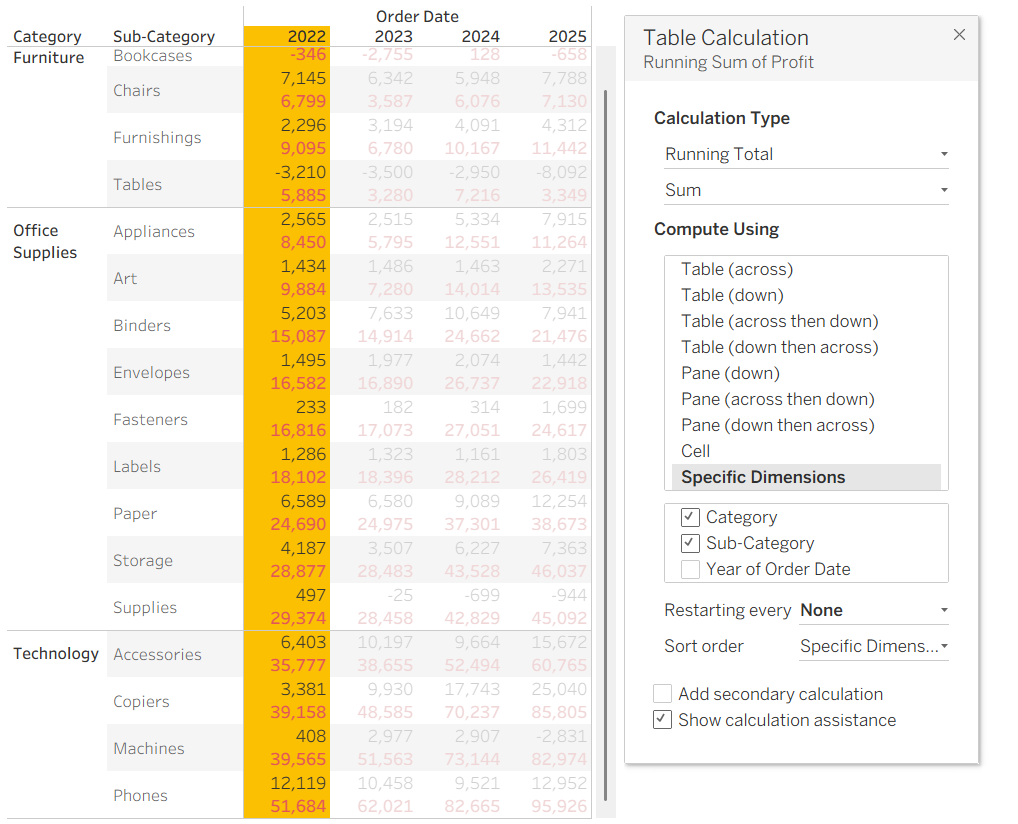
We see that the total profit for the year 2022 is around 52,000. Having 'Show calculation assistance,' at the bottom of the dialogue box, ticked makes configuring the table calculation much easier.
Specifying dimensions for the table calculation to be addressed and partitioned by, over making use of the default options within the 'Compute Using' dialogue window, has the advantage of not changing the values of the computation should the user decided to switch columns and rows.
Takeaway
By changing which dimensions act as partitioning fields, we can control where table calculations restart. Understanding how Tableau partitions and addresses the data in the view is key to using table calculations effectively.