What is a parameter?
A parameter in Tableau is a dynamic value that a user can create and adjust to control aspects of a workbook interactively. A parameter's value can change based on user input, and other elements (e.g calculations, reference lines) can reference that parameter to update dynamically.
There are multiple different use cases for parameters such as:
- Dynamic filtering- allows user to pick which measure or dimension to filter by
- Adjusting Thresholds- Such as a reference line or changing the top N filter
-What if analysis- allows user to adjust input to see how results cange
How to create parameters, integrate and display them in your view
There are 3 main steps you need to follow when wanting to use a parameter.
Here I will explain this step, using examples from a previous Workout Wednesday.
Step 1: Parameter Creation
Generate a parameter using the button shown. You can select the data type the parameter, and the range of values that you would like to be able to select. When naming the parameter it can be useful to use 'P:' as a prefix, to prevent becoming confused later on.
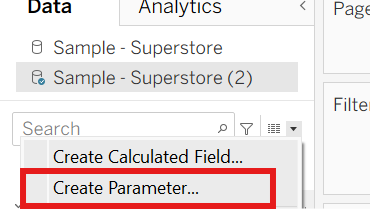
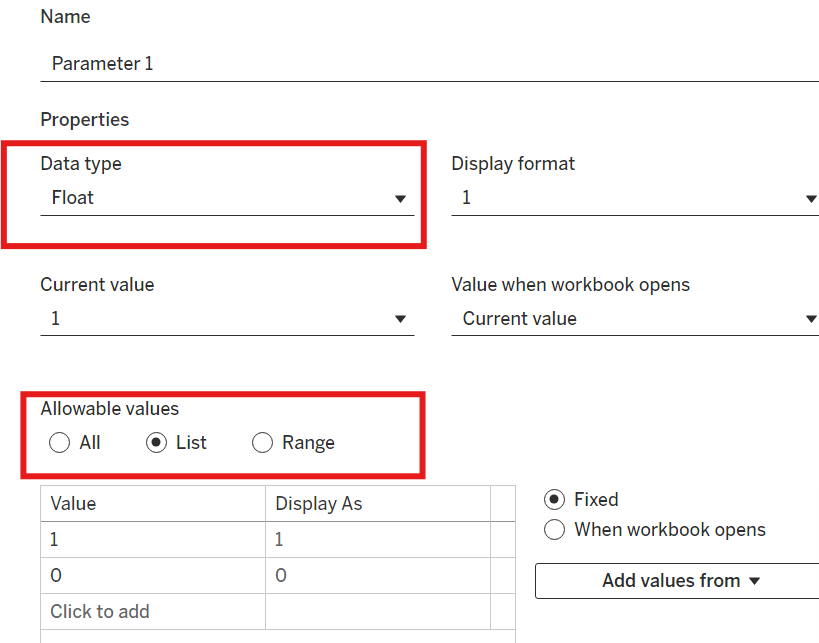
Once created the parameters will exist in bottom of the data pane. Right click the parameter, and ensure the 'Show parameter', this will allow you to view the parameter on the sheet.
Using example
In this example I would like to make parameter which filters the results by different dimensions- In this case the dimensions are Sub-category, Manufacturer, Product Name and Customer Name. So following the first step I will create a parameter with a data string type.
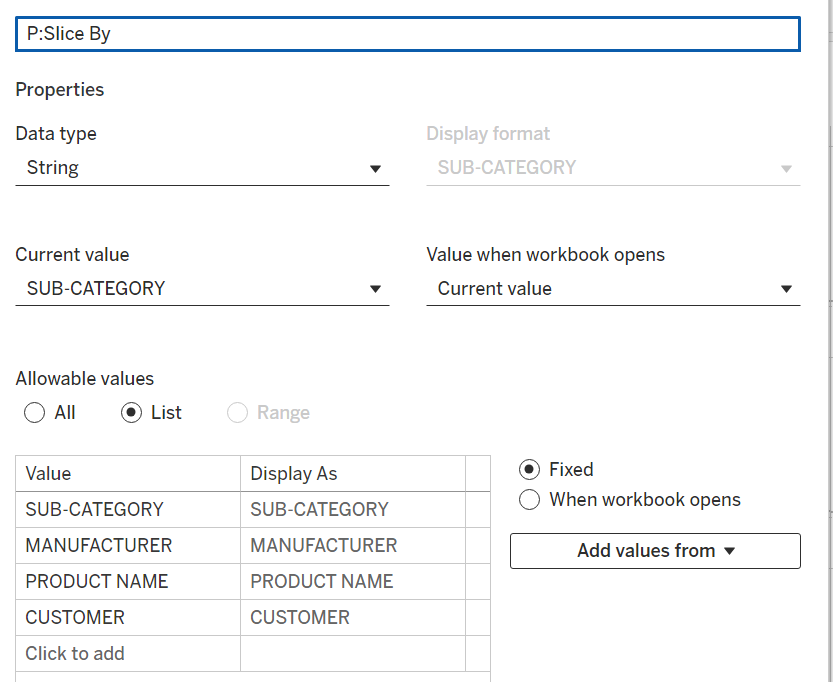
Step 2: Make calculation linking parameter to field
Now that you have created a parameter, you need to create a calculated field which links the parameter to your data. Without this step the parameter will not change anything in your view.
This steps allows you to control how the parameter will impact the worksheet. The calculated field will usually use an IF or CASE statement. Similar to before use a 'CF:' prefix.
Using example
In this example I will use a CASE function. Here I am telling tableau to return the field of its corresponding parameter. Ensure that all terms are spelt exactly as they were when creating the parameter.
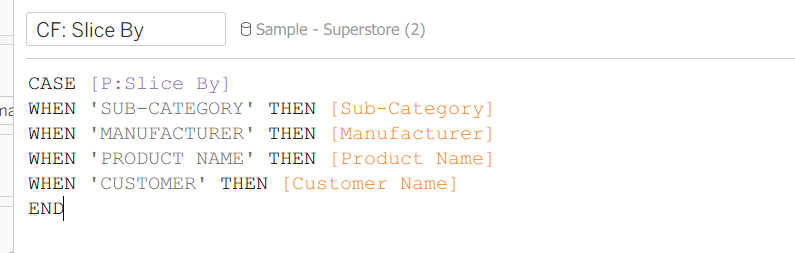
Here is another example linking a parameter to the data, using an IF statement.

Step 3: Drag the calculation to relevant location within the view.
Now that you have created the parameter and linked it to your data, it needs to be implemented into the work sheet. This is done by dragging the calculated field onto the sheet. But deciding where to put the calculation can be confusing. The best piece of advice I was given was to ask yourself 'where do I want this parameter to act?'
Using Example
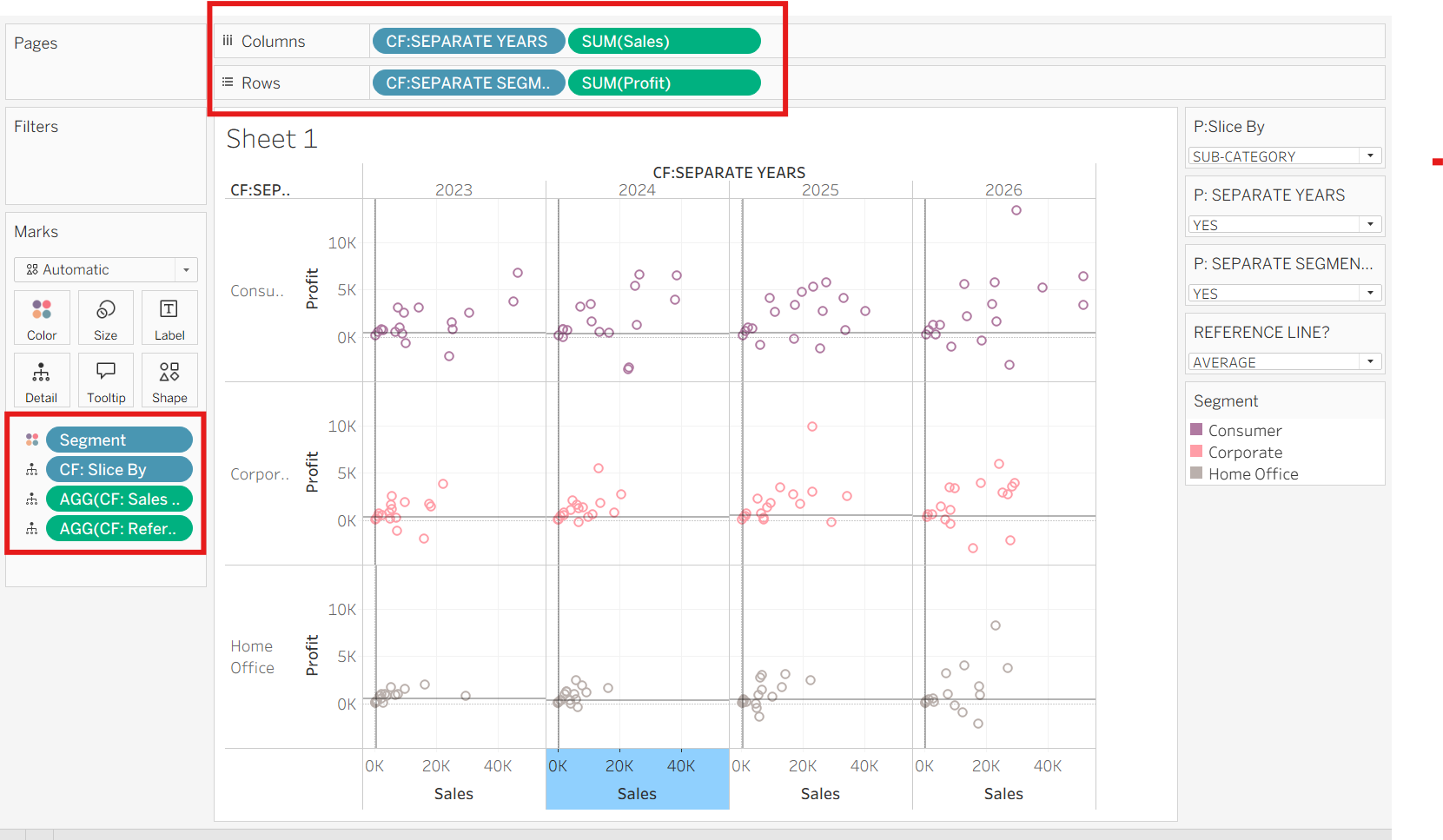
As the Slice by parameter we made will act on the whole sheet, it is brought into the marks card under detail.
If you wanted the parameter to act within the rows and/or columns, you would place the drag the created calculation as shown below.