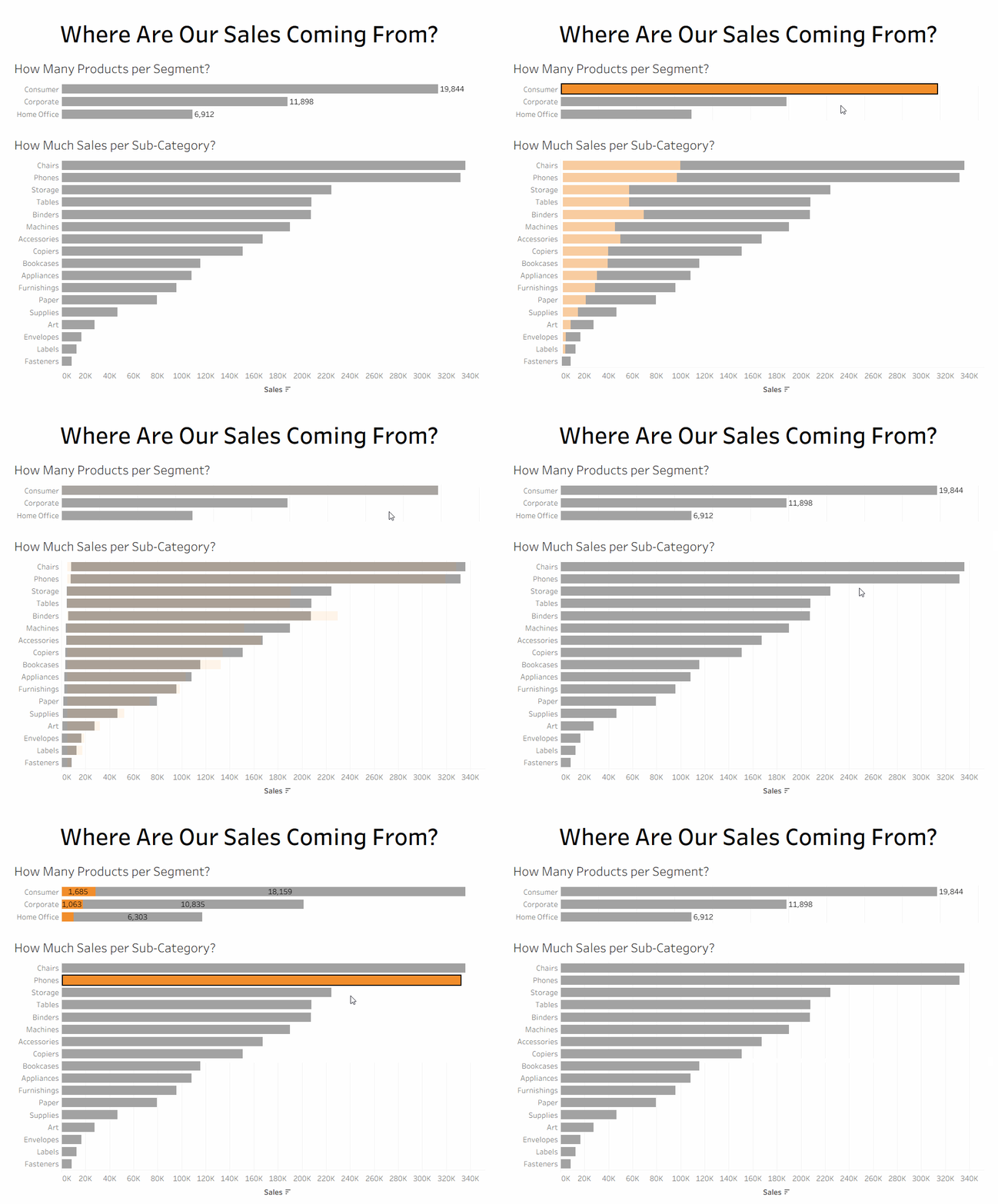
In Tableau, there's many different actions that you can implement to add some interactivity to your worksheets and dashboards. Some of these actions can let you change the values in a set or a parameter, move to a different view, link to a URL, setting up a filter, or, in the case of this blog, highlighting certain values.
One of the most common ways that this interactivity is used is to allow the user to select a value on one chart to change how other charts are viewed. This is a nice way to have some intuitive interactivity across your dashboard. However, since you end up clicking on a value in a chart, you'll see a menu provided by Tableau for what actions there are that you can do. This also focuses in on that mark only, as Tableau is highlighting that specific mark. It can, at least for me, lead to some annoyance with trying to interact with the charts.
Let's take an example dashboard to show what the problem is. This dashboard, using the Tableau Superstore data source, has some interactivity already built into it. Either chart can be clicked on to show the proportion that either the customer segment or sub-category make up on the other chart. This is done through some parameter actions and using a calculated field based on the parameter onto the color property.
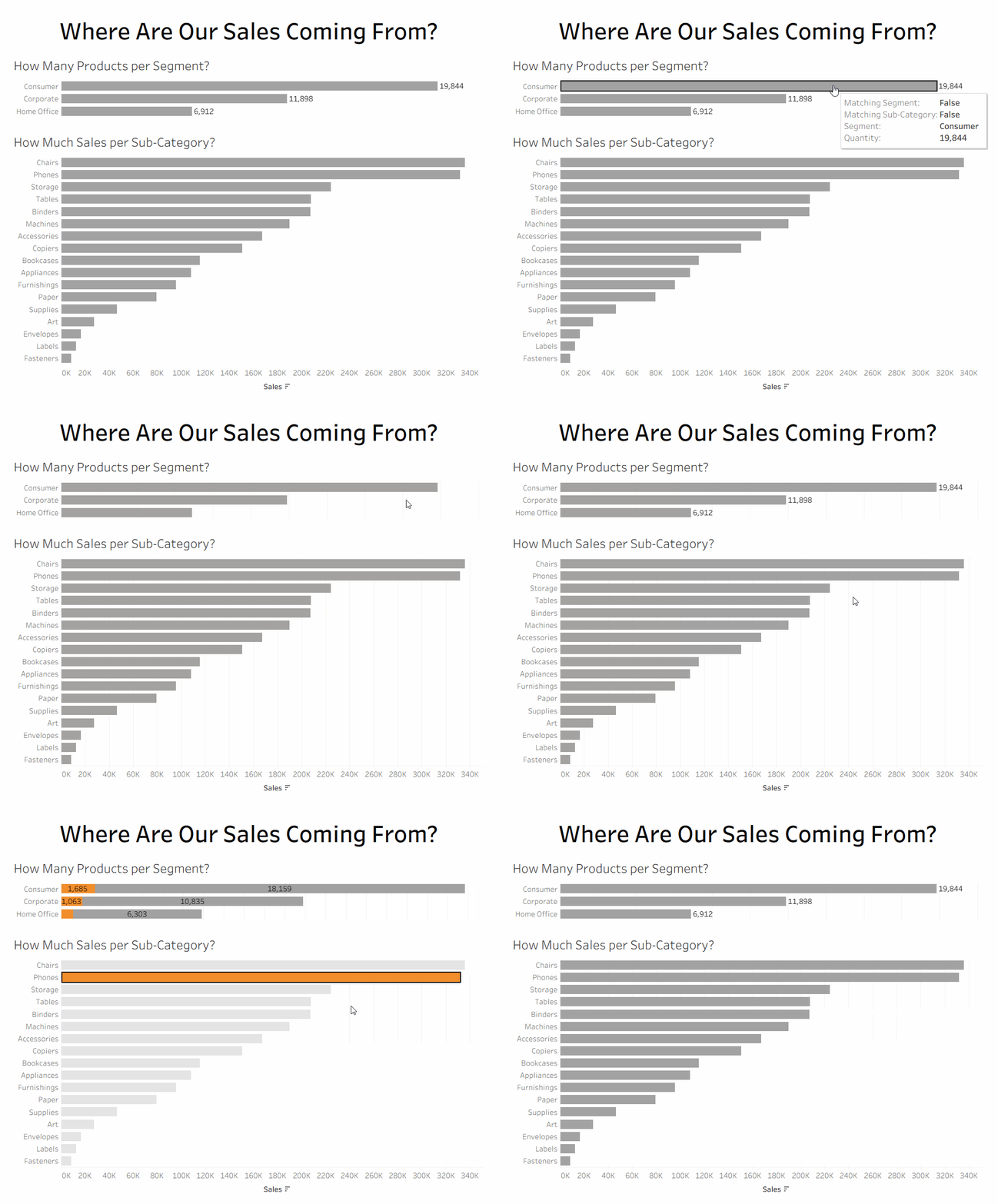
However, we can see that when either chart is clicked on, every other value on that chart fades out. This is because we are highlighting by default the one that was have clicked on. While it can be helpful, it isn't here as color is already being used to highlight what was clicked on anyway.
Luckily, there is a solution to this problem: a dummy highlight. This works by creating a new action to highlight everything on the chart at the same time. And it isn't too difficult to create as well.
We first start by creating our dummy highlight field that we will be highlighting everything by. We can put anything we want in there, so long as it will remain constant no matter what happens (that means to not use the NOW() function for it!). I would recommend using an empty string ("") for it as it provides the least opportunity for something to go wrong.
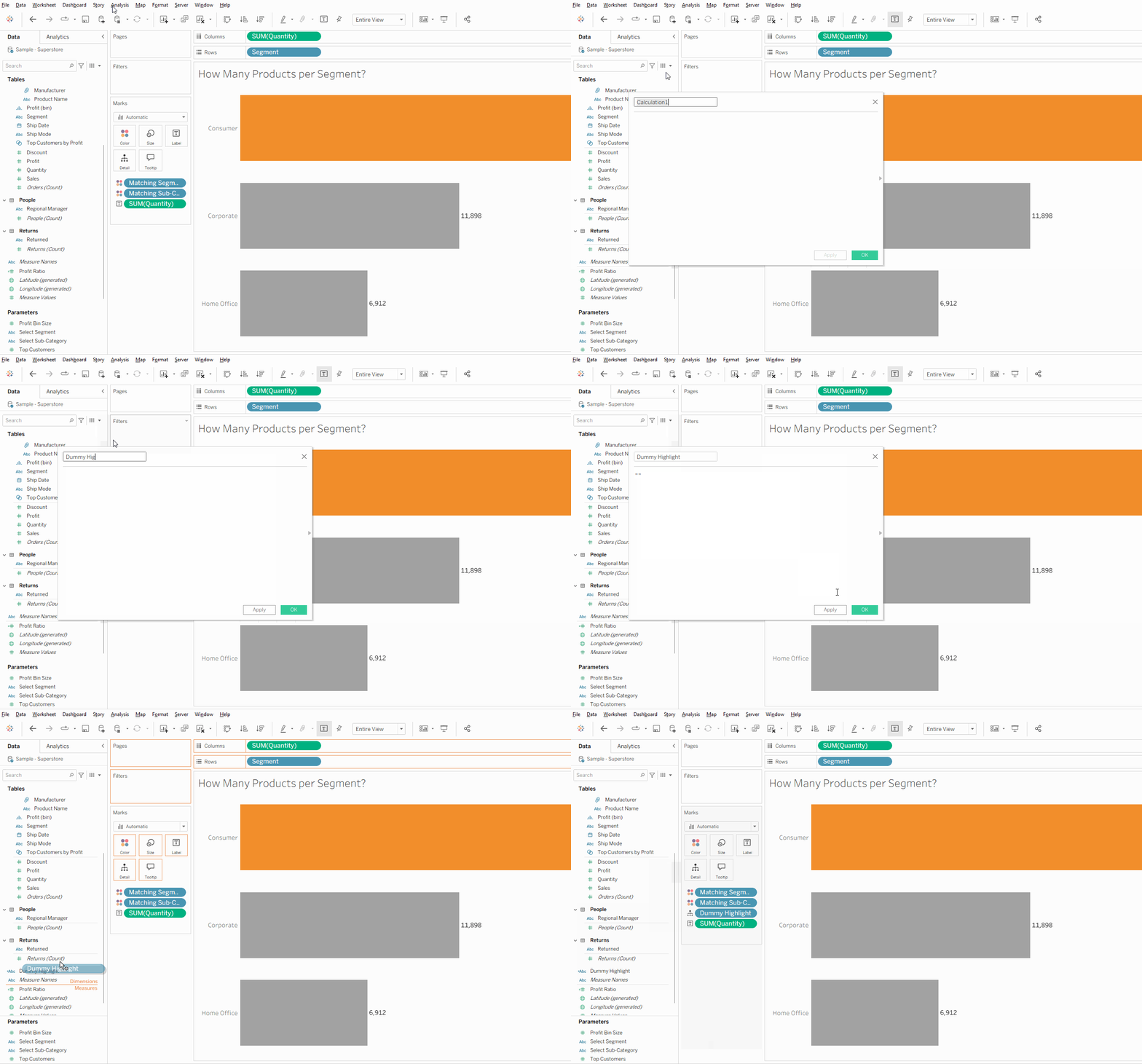
Once we've created the calculated field, we need to apply it to all of the charts that we want to not highlight on anymore. This can be done by dragging the dummy highlight field onto the marks card under the details category. This won't change anything with the chart itself as there's no way to break down to a higher level of granularity using our constant.
Now that we have the ability to see our dummy highlight on the charts, we can get to highlighting it. To create an action, you can navigate to the worksheet tab at the top if you're adding it to a specific worksheet, or to the dashboard tab if on a specific dashboard, and click on the 'Actions...' option. On a worksheet you can use 'Ctrl-Shift-A' while on a dashboard, you can use 'Ctrl-Shift-D' to also access this window.
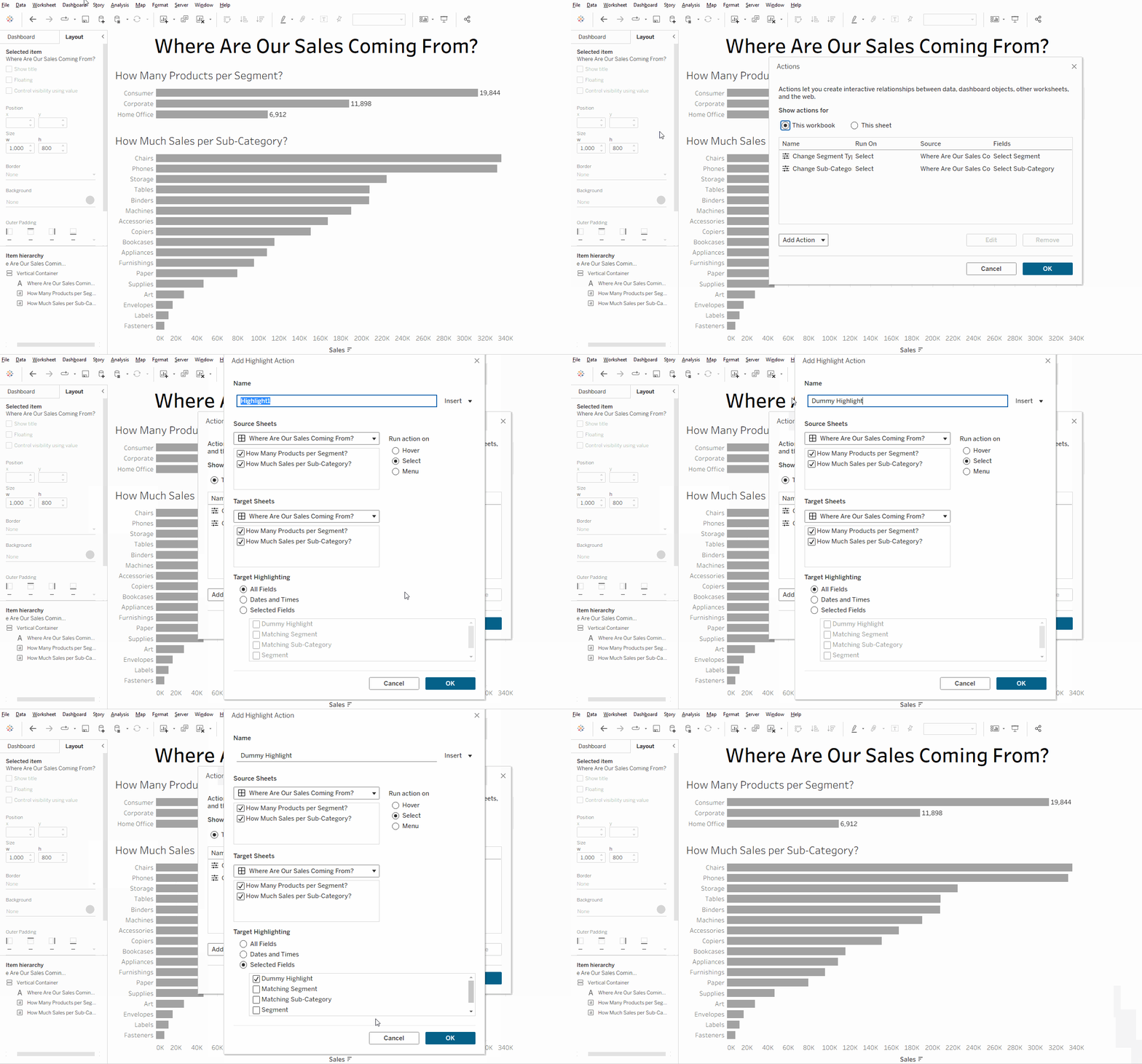
This new window shows all of the actions on your workbook, with the ability to only show the actions that are applicable for what you are currently looking at. We can add the highlight action to the dashboard/worksheet, choosing to highlight on the specific field of the dummy action.
And with that, the action is ready to be used. This now means when a mark is clicked on the charts of the dashboard, they will no longer be highlighted. So all marks can be easily seen as the user interacts with the dashboard!